Logo video2dn
  • Сохранить видео с ютуба
  • Категории
    • Музыка
    • Кино и Анимация
    • Автомобили
    • Животные
    • Спорт
    • Путешествия
    • Игры
    • Люди и Блоги
    • Юмор
    • Развлечения
    • Новости и Политика
    • Howto и Стиль
    • Diy своими руками
    • Образование
    • Наука и Технологии
    • Некоммерческие Организации
  • О сайте

Скачать или смотреть Playing Star Trek Resurgence on the Steam Deck

  • HandheldPCGaming
  • 2023-06-19
  • 102
Playing Star Trek Resurgence on the Steam Deck
  • ok logo

Скачать Playing Star Trek Resurgence on the Steam Deck бесплатно в качестве 4к (2к / 1080p)

У нас вы можете скачать бесплатно Playing Star Trek Resurgence on the Steam Deck или посмотреть видео с ютуба в максимальном доступном качестве.

Для скачивания выберите вариант из формы ниже:

  • Информация по загрузке:

Cкачать музыку Playing Star Trek Resurgence on the Steam Deck бесплатно в формате MP3:

Если иконки загрузки не отобразились, ПОЖАЛУЙСТА, НАЖМИТЕ ЗДЕСЬ или обновите страницу
Если у вас возникли трудности с загрузкой, пожалуйста, свяжитесь с нами по контактам, указанным в нижней части страницы.
Спасибо за использование сервиса video2dn.com

Описание к видео Playing Star Trek Resurgence on the Steam Deck

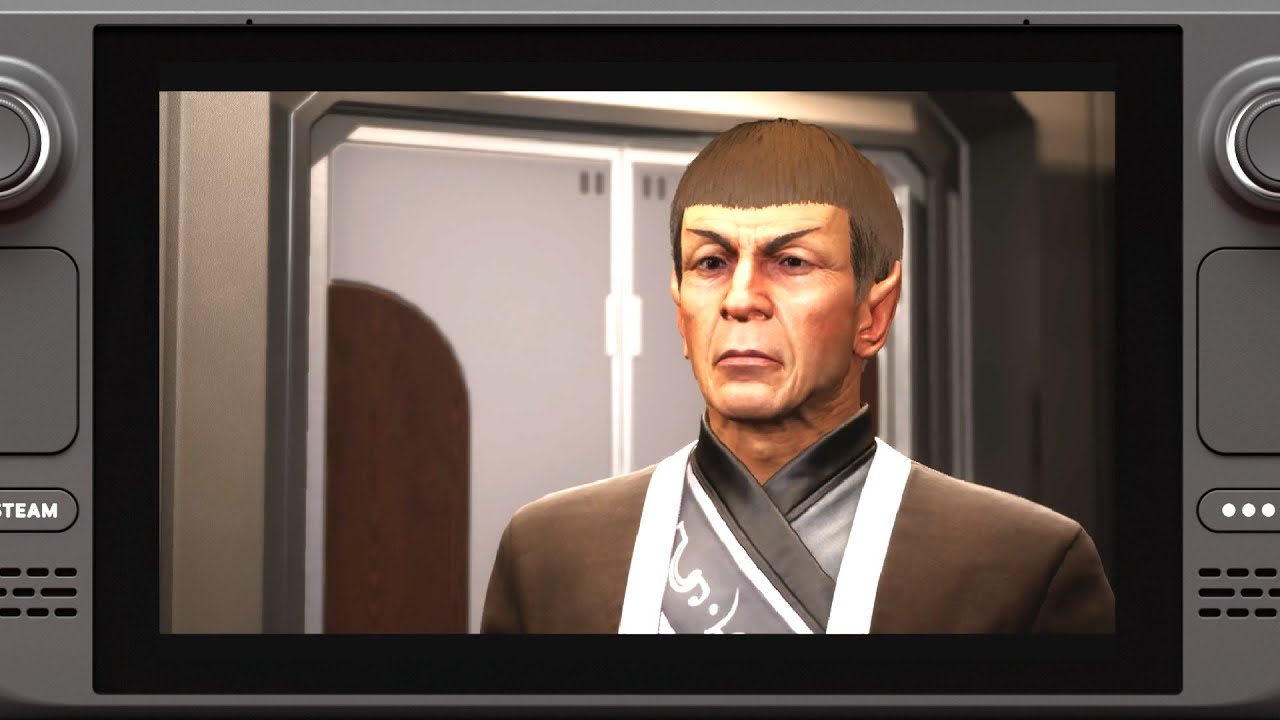
On this video, we are testing how Star Trek Resurgence plays on the Steam Deck. The verdict, it plays awesome and is super fun to play and amazing on the Steam Deck. Just take a look at the instructions below to make it run smoothly.

00:00 Title Screen
00:14 Epic Game Launcher/Graphical Settings
00:27 Start of Gameplay, I will take your life!
00:31 Using Dolphin and Chrome to update Scalability.ini.
03:50 That view never gets old.
05:37 Make way?
06:30 End of my Commentary.
07:37 Ambassador SPOCK!!!!!
09:01 Throne room.
13:18 Ugly beam messing with my performance.

To play this game you will need to do the following:

Install the Epic Game Launcher (there are a million sites that show you how to do this)
Install Star Trek Resurgence from the Epic Game Launcher
On the Steamdeck go to Desktop Mode (Steam button-Power-Switch to Desktop)
Open up the Dolphin file explorer
go to the path /home/deck/.steam/steam
Search for StarTrek, one word (Dolphin menu - Edit-Search) and click on the folder StarTrekGame.
On the path there should be a large number, for example for me it was 3334329828, but for you it might be a completely different number, click on the number in the path
Go to a path similar to the one below, note that in your case the number might be different, but the rest of the path should be the same
/home/deck/.steam/steam/steamapps/compatdata/3334329828/pfx/drive_c/users/steamuser/AppData/Local/StarTrekGame/Saved/Config/WindowsNoEditor
Open the file GameUserSettings.ini
Note that you should have the following settings (ignore the rest), while it should be as easy as chaanging all those 3's for 1's or 0's and saving the file, for whatever reason this game will just set them back to 3. Note that the settings go from low to epic from 0 to 3. You can close the file.
sg.AntiAliasingQuality=3
sg.ShadowQuality=3
sg.PostProcessQuality=3
sg.TextureQuality=3
sg.EffectsQuality=3
sg.FoliageQuality=3
Open the file Scalability.ini, it should be empty.
Add the sections (including the brackets and @3) to this file
[ShadowQuality@3]
[PostProcessQuality@3]
[TextureQuality@3]
[EffectsQuality@3]
[FoliageQuality@3]
You can add an [AntiAliasingQuality@3] section if you want, but in my case changing this setting created a horrible shimmering on the graphics, and it would only add 1-4 FPS so it was not worth it.
Open up chrome or whatever browser you have on Desktop mode
Go to the site https://docs.unrealengine.com/5.2/en-...
Under each respective quality setting in the Scalability.ini file, copy and paste the block of red settings under the ZERO section of the respective entry on the Website. For example for the [PostProcessQuality@3] section the settings under sg.PostProcessQuality 0 are:
r.BlurGBuffer=0
r.AmbientOcclusionLevels=0
r.AmbientOcclusionRadiusScale=1.7
r.DepthOfFieldQuality=0
r.RenderTargetPoolMin=300
r.LensFlareQuality=0
r.SceneColorFringeQuality=0
r.EyeAdaptationQuality=0
r.BloomQuality=4
r.FastBlurThreshold=0
r.Upscale.Quality=1
r.Tonemapper.GrainQuantization=0
Do this for the five @3 settings above.
If you also added the [AntiAliasingQuality@3] section, you can give it the the values 0, 2, 4 or 6 (the default) to r.PostProcessAAQuality like r.PostProcessAAQuality=2, but be warned that in my experience it created some artifacts and shimmering on the graphics and only added 1-4 FPS, which was not worth it.
Save the Scalability.ini file, and you are set. You can go back to game mode and launch the game from the Epic Game Laucher.


Note that we captured the video using an elgato HD60X external capture card which would upscale the 1280X800 native Steam Deck video to 1080p. This upscaling also created some black bars on the sides to keep the correct aspect ratio of the video. Additionally, any choppiness on the video where you do not see a slowdown on the FPS, was most likely caused by the video capture card and not the gameplay itself. The Steam Deck was docked on a JSAUX dock during this capture, but we still used the Steam Deck controls to play the game.

Комментарии

Информация по комментариям в разработке

Похожие видео

  • О нас
  • Контакты
  • Отказ от ответственности - Disclaimer
  • Условия использования сайта - TOS
  • Политика конфиденциальности

video2dn Copyright © 2023 - 2025

Контакты для правообладателей [email protected]