Logo video2dn
  • Сохранить видео с ютуба
  • Категории
    • Музыка
    • Кино и Анимация
    • Автомобили
    • Животные
    • Спорт
    • Путешествия
    • Игры
    • Люди и Блоги
    • Юмор
    • Развлечения
    • Новости и Политика
    • Howto и Стиль
    • Diy своими руками
    • Образование
    • Наука и Технологии
    • Некоммерческие Организации
  • О сайте

Скачать или смотреть How to setup the Windows Portable Worker for Fishtest

  • Former Gamer
  • 2020-07-08
  • 203
How to setup the Windows Portable Worker for Fishtest
StockfishFishtestFishtest WorkerStockfish WorkerChess engineCPU donation
  • ok logo

Скачать How to setup the Windows Portable Worker for Fishtest бесплатно в качестве 4к (2к / 1080p)

У нас вы можете скачать бесплатно How to setup the Windows Portable Worker for Fishtest или посмотреть видео с ютуба в максимальном доступном качестве.

Для скачивания выберите вариант из формы ниже:

  • Информация по загрузке:

Cкачать музыку How to setup the Windows Portable Worker for Fishtest бесплатно в формате MP3:

Если иконки загрузки не отобразились, ПОЖАЛУЙСТА, НАЖМИТЕ ЗДЕСЬ или обновите страницу
Если у вас возникли трудности с загрузкой, пожалуйста, свяжитесь с нами по контактам, указанным в нижней части страницы.
Спасибо за использование сервиса video2dn.com

Описание к видео How to setup the Windows Portable Worker for Fishtest

Links mentioned in this video are below.

Windows Portable Worker Download: https://github.com/glinscott/fishtest...
Python 2.7.18: https://www.python.org/downloads/rele...
Fishtest: https://tests.stockfishchess.org/tests


Written Instructions if video isn't clear:

1) Download and Extract the Fishtest Worker

Website: https://github.com/glinscott/fishtest...

Download the Fishtest-Worker-Portable.exe file that is located under the 'Setting Up the Very First Time: Using the PROFILER' section of the page. Using 7zip, extract the files to the location where you wish to store the worker.

2) Download and install Python 2.7.18 (other versions of Python 2.7.x should work)

Website: http://www.python.org/download/releas...

Package to download and install:
Windows x86 MSI Installer (2.7.18)
http://www.python.org/ftp/python/2.7....

Installation step-by-step:
Install for all users
Install it to some directory (I choose 'C:\Python27')
Install it with all the features
Next, next, finish, done

3) Delete the "testing" folder

Delete by hand the folder "testing", located at \Fishtest-Worker-Portable\fishtest\worker\testing .
This folder must be deleted to force the update of cutechess-cli.exe .
More info can be found on the Fishcooking forum (https://groups.google.com/forum/#!msg...)

4) Fishtest username/password

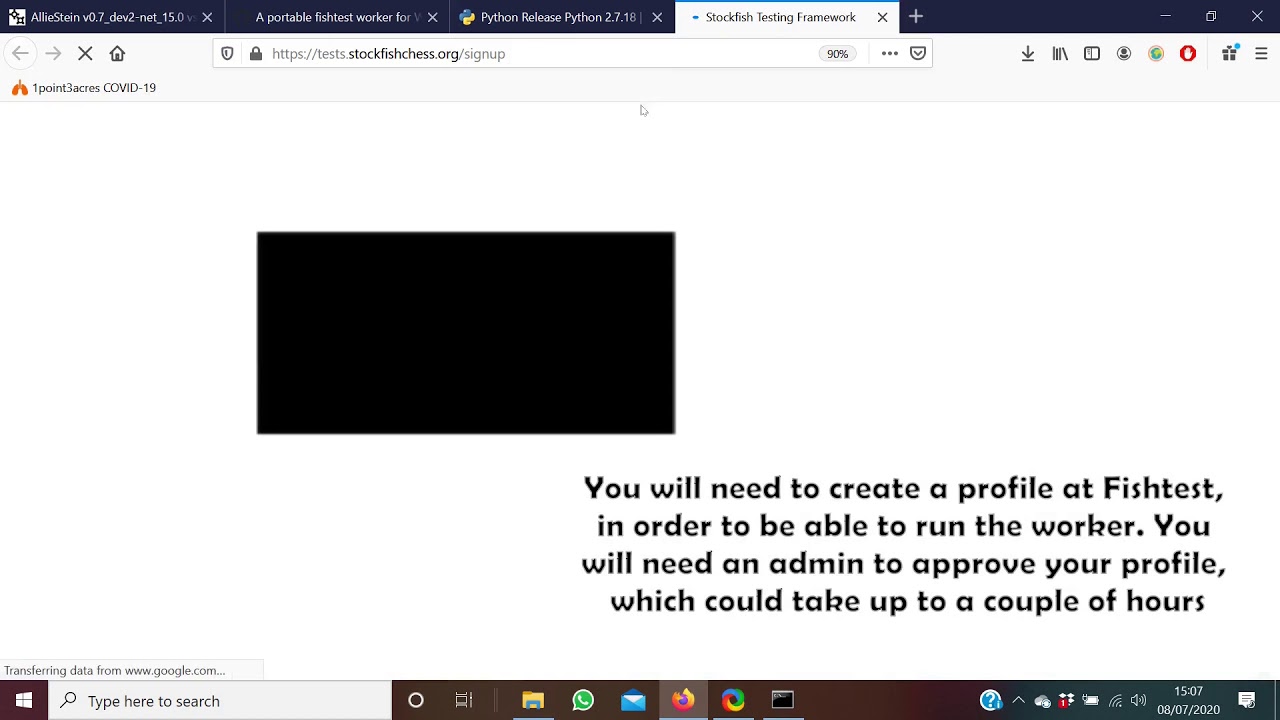
Create a username/password for yourself at http://tests.stockfishchess.org/signup

5) Launching the program

The RUN_FIRST_PROFILER.bat file examines your CPU and sets optimal settings for running the fishtest worker.
Then it asks for your fishtest username and password, which you can create at http://tests.stockfishchess.org/signup
Enter your fishtest username and password in the profiler

6) Let it run :)

In case you need to edit any settings (e.g. you made a typo), after you enter username and password, press S before the 10 seconds are up and follow the prompts.
You can also change the concurrency of your worker, to allow fishtest to use more cores in this prompt menu.

On this initial run, the PROFILER will launch the worker without any more input from you.
It also creates a file ONE_CLICK_RUN.bat that can be used to launch the worker with a single click in the future.

7) Further Information

Further information (e.g. how to change settings whilst running) can be found on the Fishtest wiki page (https://github.com/glinscott/fishtest...)

Thank you for your contribution towards improving Stockfish :)

Комментарии

Информация по комментариям в разработке

Похожие видео

  • О нас
  • Контакты
  • Отказ от ответственности - Disclaimer
  • Условия использования сайта - TOS
  • Политика конфиденциальности

video2dn Copyright © 2023 - 2025

Контакты для правообладателей [email protected]