Logo video2dn
  • Сохранить видео с ютуба
  • Категории
    • Музыка
    • Кино и Анимация
    • Автомобили
    • Животные
    • Спорт
    • Путешествия
    • Игры
    • Люди и Блоги
    • Юмор
    • Развлечения
    • Новости и Политика
    • Howto и Стиль
    • Diy своими руками
    • Образование
    • Наука и Технологии
    • Некоммерческие Организации
  • О сайте

Скачать или смотреть RaceChrono Pro DEMO 1 of 2: Setting up an autocross course

  • ckrampert racing
  • 2018-11-01
  • 10834
RaceChrono Pro DEMO 1 of 2: Setting up an autocross course
autocrossracechronoracechrono progpsanalysis
  • ok logo

Скачать RaceChrono Pro DEMO 1 of 2: Setting up an autocross course бесплатно в качестве 4к (2к / 1080p)

У нас вы можете скачать бесплатно RaceChrono Pro DEMO 1 of 2: Setting up an autocross course или посмотреть видео с ютуба в максимальном доступном качестве.

Для скачивания выберите вариант из формы ниже:

  • Информация по загрузке:

Cкачать музыку RaceChrono Pro DEMO 1 of 2: Setting up an autocross course бесплатно в формате MP3:

Если иконки загрузки не отобразились, ПОЖАЛУЙСТА, НАЖМИТЕ ЗДЕСЬ или обновите страницу
Если у вас возникли трудности с загрузкой, пожалуйста, свяжитесь с нами по контактам, указанным в нижней части страницы.
Спасибо за использование сервиса video2dn.com

Описание к видео RaceChrono Pro DEMO 1 of 2: Setting up an autocross course

SUMMARY:
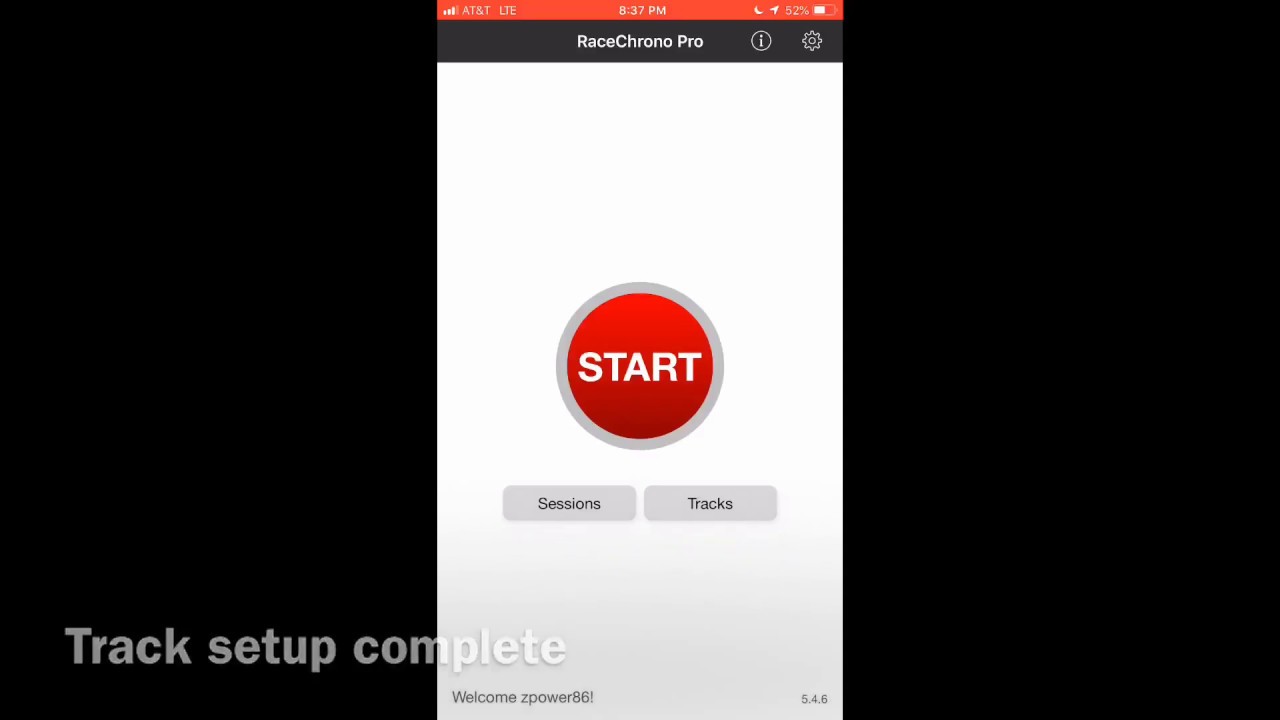
This video shows one method to create accurate Start and Finish (S/F) lines for autocross. RaceChrono Pro (RCP) calls these "Traps".


RECOMMENDED HARDWARE:
-- Any iOS or Andriod device
-- Racelogic VBOX Sport external GPS (or similar 20Hz GPS)
-- ***** ^ BUY THIS ^ *****

VIDEOS IN THIS SERIES:
Part 1 (this video):    • RaceChrono Pro DEMO 1 of 2: Setting up an ...  
Part 2:    • RaceChrono Pro DEMO 2 of 2: Comparing Auto...  


GENERAL STEPS:
i) Prior to completing these steps, verify that your external GPS is paired and connected to your device. Verify that RCP is set to use the external GPS.
1) Walk to start line. Get good GPS signal, then press START.
2) Create new track
3) Add trap for Start line.
4) Walk to finish line.
5) Add trap for Finish line.
6) Rename session and track.
7) Name, resize and rotate S/F traps appropriately.
8) Now that track is complete, resume session, then proceed to start line. RCP will start automatically when you pass the start line.


PRO TIPS:
-- When setting the S/F traps, walk about 15ft in front of the S/F line and then walk directly up to the line and stop. Verify the GPS signal is good, and create the trap. If you create it this way, the rotation of the arrow will be easy to adjust, or may not even need to be adjusted.
-- If you forget to set S/F lines before your runs, simply press START and just go. Everything will be recorded. After your first run, you can edit the track and add the S/F traps.


OPTIONAL:
-- RCP will import OBD2 data simultaneously, and control GoPros, however I personally have never tried it because speed and position will give me nearly everything I need for personal data analysis. Between runs, you only have a few minutes to analyze data.
-- If I were going to use OBD2, I would recommend PLX Devices Kiwi 3 (or Kiwi 4 out in Dec 2018). I have a Kiwi 3, but I haven't tried it with RCP.

Комментарии

Информация по комментариям в разработке

Похожие видео

  • О нас
  • Контакты
  • Отказ от ответственности - Disclaimer
  • Условия использования сайта - TOS
  • Политика конфиденциальности

video2dn Copyright © 2023 - 2025

Контакты для правообладателей [email protected]