Logo video2dn
  • Сохранить видео с ютуба
  • Категории
    • Музыка
    • Кино и Анимация
    • Автомобили
    • Животные
    • Спорт
    • Путешествия
    • Игры
    • Люди и Блоги
    • Юмор
    • Развлечения
    • Новости и Политика
    • Howto и Стиль
    • Diy своими руками
    • Образование
    • Наука и Технологии
    • Некоммерческие Организации
  • О сайте

Скачать или смотреть Online Screening Room | MEDIAmobz

  • MediaMobz
  • 2012-01-25
  • 103
Online Screening Room | MEDIAmobz
online screening roomvideo screening roomvirtual screening room
  • ok logo

Скачать Online Screening Room | MEDIAmobz бесплатно в качестве 4к (2к / 1080p)

У нас вы можете скачать бесплатно Online Screening Room | MEDIAmobz или посмотреть видео с ютуба в максимальном доступном качестве.

Для скачивания выберите вариант из формы ниже:

  • Информация по загрузке:

Cкачать музыку Online Screening Room | MEDIAmobz бесплатно в формате MP3:

Если иконки загрузки не отобразились, ПОЖАЛУЙСТА, НАЖМИТЕ ЗДЕСЬ или обновите страницу
Если у вас возникли трудности с загрузкой, пожалуйста, свяжитесь с нами по контактам, указанным в нижней части страницы.
Спасибо за использование сервиса video2dn.com

Описание к видео Online Screening Room | MEDIAmobz

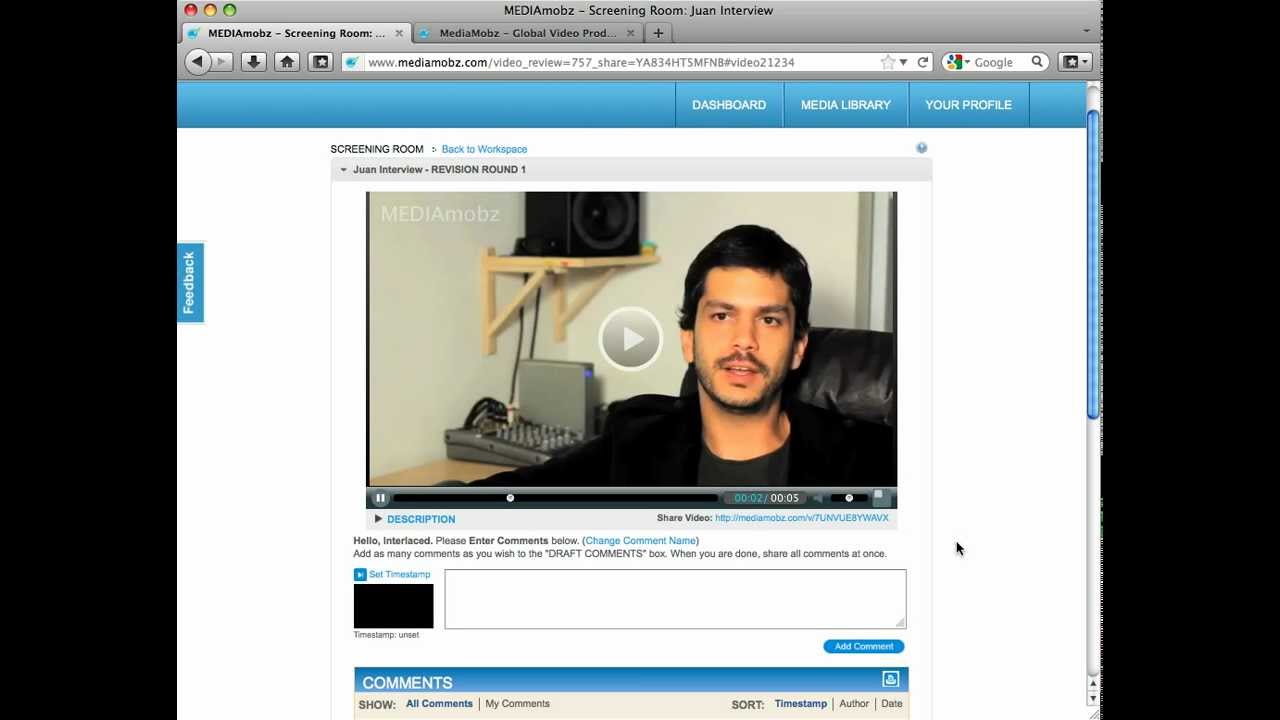
http://www.mediamobz.com/solutions/sc... This video will walk you through the easy process of using the MEDIAmobz online screening room.

Create a workspace by typing in a title and an optional description. Once you have created your workspace it will show up on your active workspace list on the right hand side column. Access your workspace by clicking on it. Once you are in your workspace you can create a screening room by typing in a title and description on the designated fields and then upload a video file from the field right below the description box. Click create screening room.

The final video check box when checked will upload your final version video as well as a download link for your clients to access the final work.

You can add comments on your videos by pausing the video in the area where you want to make the changes, click the "set time-stamp" button on the lower left hand side of the video right next to the add comment box. Type your comment on the comment box and click on the "add comment" button.

You can add as many comments as needed. All your comments will appear below the video where anyone working on the video can reply. Clicking on the time-stamp comment will take you to the exact time in the video where the comment is directed.

You can also edit or delete the comment by clicking in the edit or delete button right below it.

The sort time-stamp tab at the top right corner of the comments section allows you to sort all of the comments in sequential order.

The sort author tab allows you to sort only specific commenter that you want to view.

You can also sort by date and print the comments by clicking on the print tab.

Right below your video is a share your video link. When you click on this link it will bring you to a blank page with just the video player. You can share this link to anyone you want to share the video with, without the comment box below it.

For any revised versions, you can click on the description button right below the video on the right hand side. This area is where you can add new revisions by typing in the new title, descriptions and uploading the new revised video.

When the newly revised video is uploaded the older video minimizes and the new one becomes the preview version.

Once your video is set, you can share the video via email by clicking on the email icon on your dashboard to invite people to review your video.

Комментарии

Информация по комментариям в разработке

Похожие видео

  • О нас
  • Контакты
  • Отказ от ответственности - Disclaimer
  • Условия использования сайта - TOS
  • Политика конфиденциальности

video2dn Copyright © 2023 - 2025

Контакты для правообладателей [email protected]