Logo video2dn
  • Сохранить видео с ютуба
  • Категории
    • Музыка
    • Кино и Анимация
    • Автомобили
    • Животные
    • Спорт
    • Путешествия
    • Игры
    • Люди и Блоги
    • Юмор
    • Развлечения
    • Новости и Политика
    • Howto и Стиль
    • Diy своими руками
    • Образование
    • Наука и Технологии
    • Некоммерческие Организации
  • О сайте

Скачать или смотреть How To Rename Bluetooth Devices on iPhone & iPad (iOS 14)

  • iPhone Tricks (iPhoneTricks.org)
  • 2020-08-20
  • 52430
How To Rename Bluetooth Devices on iPhone & iPad (iOS 14)
iOS 14iPadOS 14iPhoneiPadBluetoothDevicesRenameHow ToSettings
  • ok logo

Скачать How To Rename Bluetooth Devices on iPhone & iPad (iOS 14) бесплатно в качестве 4к (2к / 1080p)

У нас вы можете скачать бесплатно How To Rename Bluetooth Devices on iPhone & iPad (iOS 14) или посмотреть видео с ютуба в максимальном доступном качестве.

Для скачивания выберите вариант из формы ниже:

  • Информация по загрузке:

Cкачать музыку How To Rename Bluetooth Devices on iPhone & iPad (iOS 14) бесплатно в формате MP3:

Если иконки загрузки не отобразились, ПОЖАЛУЙСТА, НАЖМИТЕ ЗДЕСЬ или обновите страницу
Если у вас возникли трудности с загрузкой, пожалуйста, свяжитесь с нами по контактам, указанным в нижней части страницы.
Спасибо за использование сервиса video2dn.com

Описание к видео How To Rename Bluetooth Devices on iPhone & iPad (iOS 14)

Another hidden feature available in iOS 14 provides the option to rename a Bluetooth device that connects to your iPhone or iPad. This is a highly welcomed addition because it helps you to easier differentiate between devices.

Default names don't giveaway to much and you can easily confuse them, especially if the Bluetooth loudspeaker, headset or other device doesn't connect automatically.

You can change the name of a Bluetooth device in iOS 14 in the Settings app. As detailed in this step-by-step tutorial.

Subscribe to our channel:    / @iphonetricksorg  
Source article: https://www.iphonetricks.org/how-to-r...

Chapters & Captions:
0:00 Start
Hi everyone and welcome to the iPhoneTricks.org YouTube channel. In today's episode I'll show you how to rename the Bluetooth devices that are connected to your iPhone. This is a new iOS 14 feature. So, let's dive right into it.

0:15 Browse for Bluetooth Settings
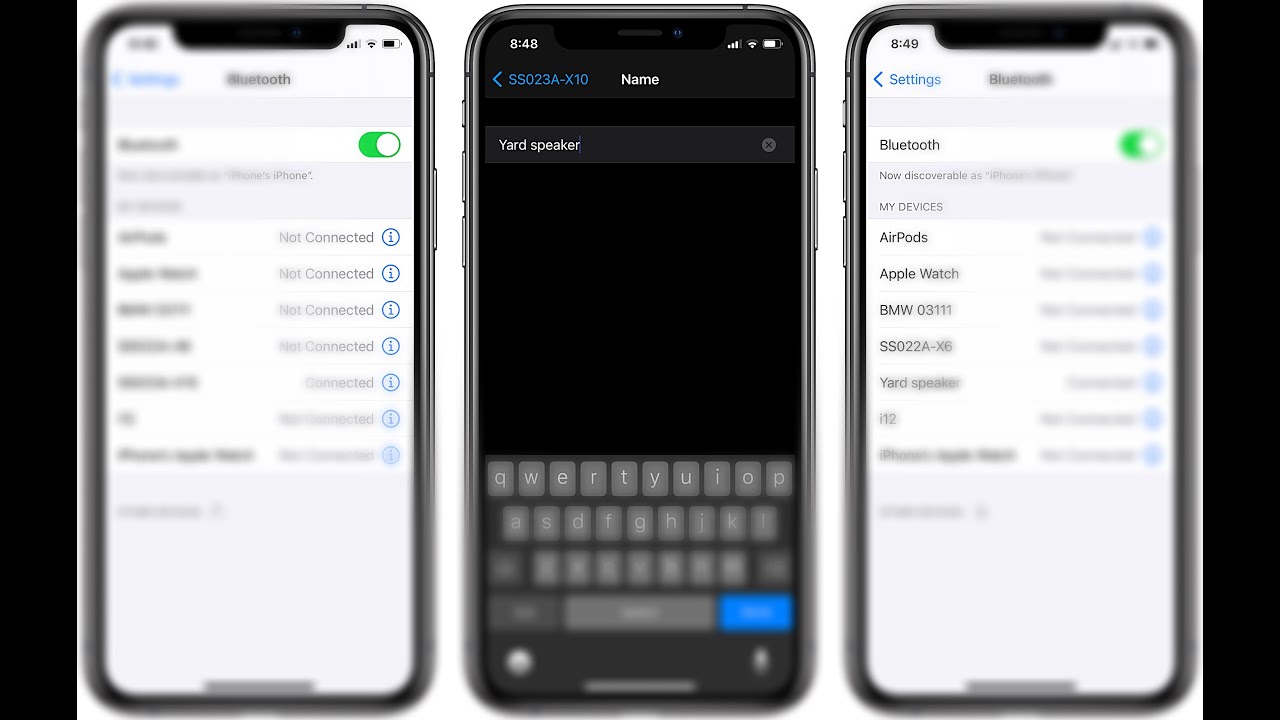
First, we have to open the Settings app. Tap on 'Bluetooth' and check out the list with all devices that have been paired with your iPhone. The ones that are connected at the moment are labeled with a 'Connected' tag. Only connected devices can be renamed!

0:41 Rename Bluetooth Device
Tap the blue 'i' icon, available next to the 'Connected' label. Next, tap on the 'Name' field. Use the backspace to delete the devices's default name. In this tutorial I'm changing the name of my Bluetooth loudspeaker that I use in the yard. That's why I used, 'Yard speaker' in this video. Tap 'Back' and you're done.
Tip: When choosing a new name, use something suggestive that will help you to easily recognize the specific device in the Bluetooth list.

1:05 Reviewing the Change
If you check the My Devices list in the Bluetooth section, you'll see that's much easier to recognize your device when the name is customized.
I suggest you to rename all devices.
Important: The Bluetooth device has to be in range and connected with the iPhone for the renaming feature to work! Else you only get the 'Forget This Device' option.

1:41 Conclusion
If you enjoyed this tip, please Like this video, Subscribe to our YouTube channel and visit iPhoneTricks.org for daily tips and tricks related to your favorite Apple products. Thanks for watching. See you in the next one. Bye bye!

Комментарии

Информация по комментариям в разработке

Похожие видео

  • О нас
  • Контакты
  • Отказ от ответственности - Disclaimer
  • Условия использования сайта - TOS
  • Политика конфиденциальности

video2dn Copyright © 2023 - 2025

Контакты для правообладателей [email protected]