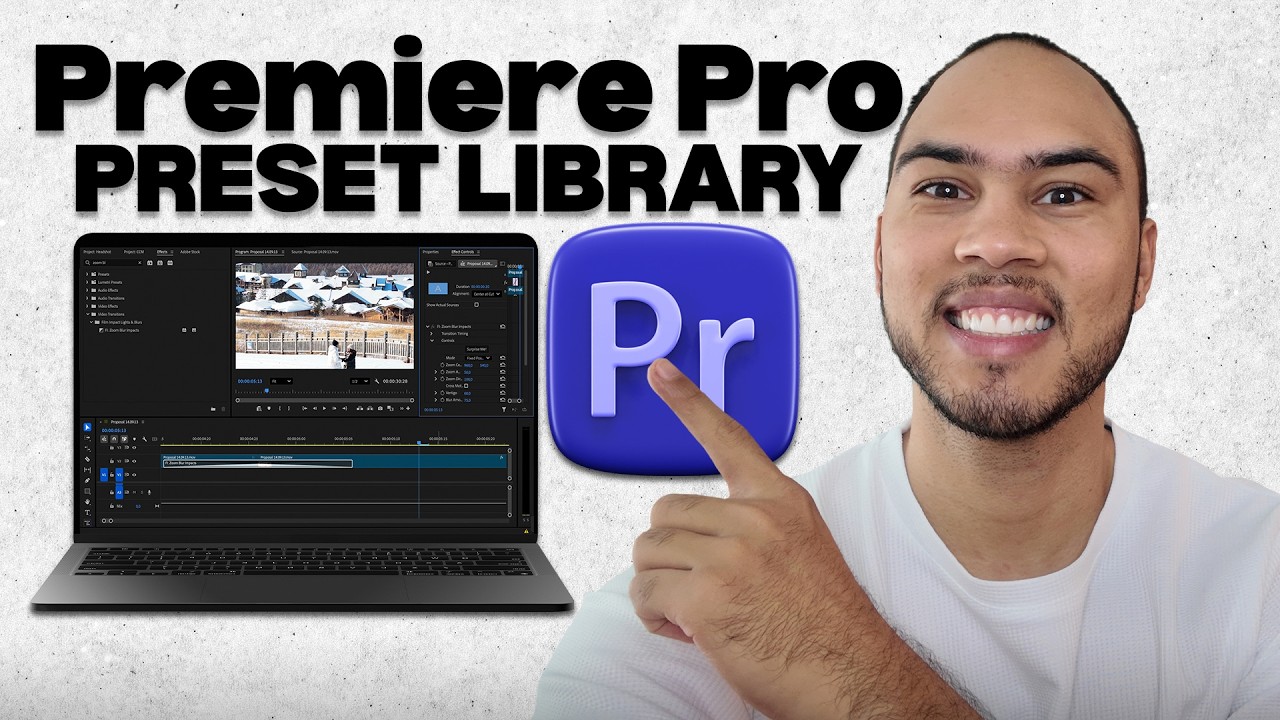
In this video, I’ll go over how to build a preset library in Premiere Pro to speed up your video editing workflow. You’ll see how to preview an effect in the Effect Controls panel and adjust settings before saving it as a custom preset. I’ll show how to save color grading, Lumetri Color, transitions, audio effects, scale, position, and opacity as reusable presets. This Premiere Pro tutorial helps content creators, YouTubers, and video editors stay organized inside the Effects panel and timeline.
Be sure to watch this video all the way as I cover how to configure preset settings correctly and choose the right preset type for different clips and sequences. I’ll explain how to create drag and drop presets for motion graphics, text animation, sound design, and basic video effects. You’ll learn how preset management improves batch editing, post production speed, and overall editing efficiency. These Premiere Pro tips make it easier to build a clean editing system for YouTube videos, client projects, and social media content.
Premiere Pro makes it simple to save effects, organize custom presets, and create a faster editing workflow. A strong preset library in Premiere Pro improves productivity, keeps color correction consistent, and helps maintain a polished video style. This Premiere Pro guide covers saving effects as presets, organizing the Effects panel, and building repeatable editing shortcuts for every project. With the right Premiere Pro preset setup, video editing becomes smoother, faster, and more consistent across all content.
If you want to see more tutorials, check out our other videos:
How to Use Essential Sound for Easy Audio Mixing in Premiere Pro
• How to Use Essential Sound for Easy Audio ...
How to Fix Overexposed or Underexposed Footage in Premiere Pro
• How to Fix Overexposed or Underexposed Foo...
Subscribe to our channel for easy-to-follow tutorials, tips, and tricks! GuideWise is here to help you learn new skills, solve problems, and make life easier.
Thank you for watching and have a great day!
– Kyle
#PremierePro #VideoEditing #AdobePremiere
Timeline:
0:00 - Introduction
0:13 - Preview The Effect You Want To Save
0:22 - Save Effects As A Custom Preset
0:41 - Configure Preset Settings Correctly
Disclaimer: Some of the links above may be affiliate links, which means that if you click on them, I may receive a small commission. The commission is paid by the retailers at no cost to you, and this helps support our channel and keep our videos free. Thank you! All information in our videos is compiled from online sources and our own experience, and we encourage you to do your own research. We appreciate your support!










Информация по комментариям в разработке