MUSEUM
The MUSEUM module consists of 13 spherical stations (MUSEUM halls). Each sphere contains works of art and architecture (objects) created during a specific historical period, corresponding to key epochs in Russian history:
Ancient Rus and the Russian State
1 – 11th-12th cc. (1000-1100)
2 – 12th-14th cc. (1100-1400)
3 – 15th c. (1400-1500)
4 – 16th-17th cc. (1500-1700)
Russian Empire
5 – 18th c. (1700-1800)
6 – First half of the 19th c. (1800-1850)
7 – Second half of the 19th c. (1850-1895)
Russian Art of the 20th Century
8 – 1895-1905
9 – 1905-1917
10 – 1917-1921
11 – 1921-1929
12 – 1929-1953
13 – 1953-1991
Navigation between the halls is managed using the Navigator, located in the bottom right corner of the screen. The Navigator has two control panels. One panel allows movement between epochs 1-13. The reverse side provides access to the main CONTENT blocks: BOOK, TIME LINE, INDEX, and ALBUM.
Upon launching the program, the 1-st museum hall loads automatically, with the Navigator facing forward. Navigation from the 1-st hall can proceed either sequentially or by selecting a hall via the Navigator control panel.
Museum Navigation
Use your keyboard's arrow keys to move:
• Up arrow – move forward
• Down arrow – move backward
• Left arrow – move left
• Right arrow – move right
To tilt the camera up or down, hold the right mouse button and move the mouse.
Interacting with Objects
Works of art (OBJECTS) are displayed on the "walls" of the museum halls.
ATTENTION!
TO INTERACT WITH INTERACTIVE OBIECTS, MOVE CLOSER TO THEM!
Approach an object (cursor becomes a hand), then left-click to enter the CONTENT module's IMAGE block.
Architectural monuments are located on a map of Russia. First, click the active icon next to a city name to load that city. Then, click an object within the city map to view it in the CONTENT module's IMAGE block. To close the city map, click the icon next to the city name again.
Quiz Game:
Opposite the Russia map in each hall is a "computer" that runs a quiz about art and architecture of the given period. Click "Start Game" to begin, then select your answer using buttons 1, 2, 3, 4. Correct answers earn points; incorrect answers deduct points.
________________________________________
CONTENT
The CONTENT module is intended for those seeking a deeper, more professional understanding of Russian art in historical context. It offers interactive work with text, audiovisual, animated, and graphic materials and consists of five interconnected blocks:
1. BOOK – text essays with hyperlinks and visual illustrations.
2. TIMELINE – A visual representation of Russian art development, including contextual information on objects, historical events, and personalities.
3. INDEX – A reference glossary with biographies, definitions, and object classifications.
4. ALBUM – A toolkit for preparing lectures or lessons.
5. IMAGE – A functional block for viewing object images in detail.
After launching the program, the first museum hall is displayed, with the Navigator facing forward. To access any of the first four CONTENT blocks, rotate the Navigator using the top area of the control panel (a "flip" prompt appears). Click to flip and select a desired block.
From there, navigation through CONTENT and MUSEUM can proceed in any sequence. You can enter the IMAGE block by either:
• Clicking an object in the MUSEUM
• Clicking an object icon or hyperlink in any CONTENT block.
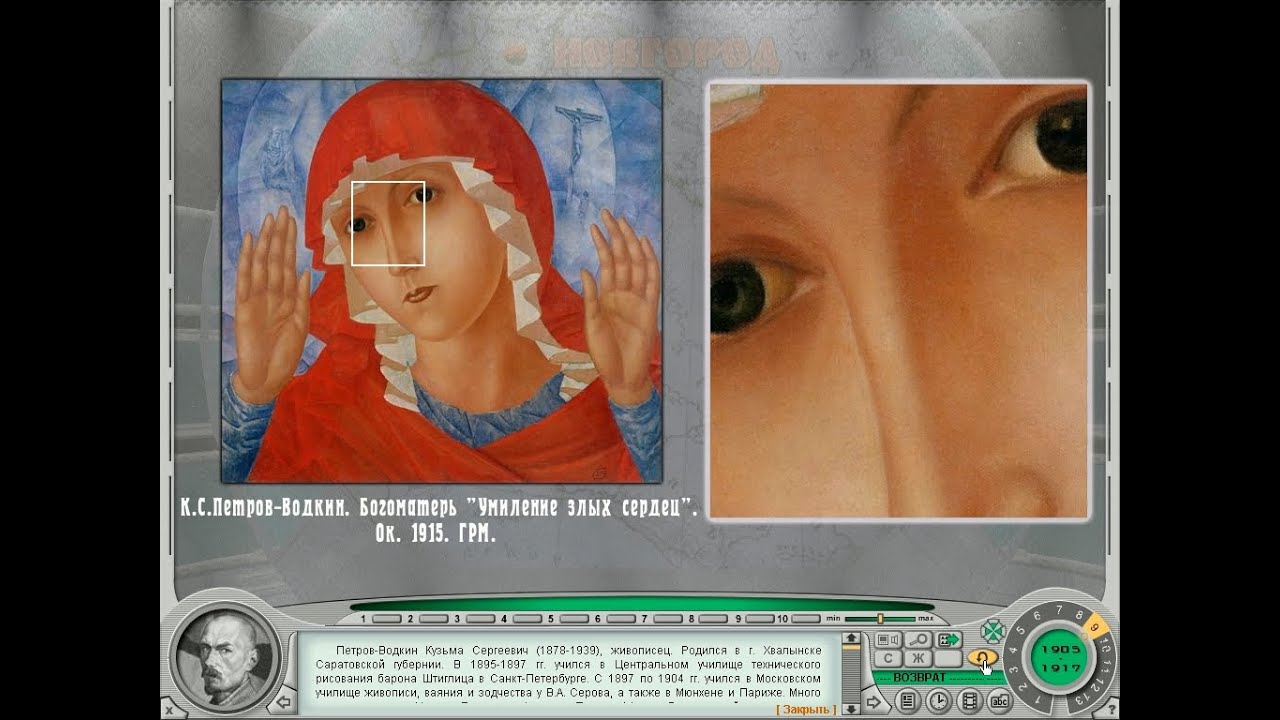
All five CONTENT blocks share the same screen layout. Approximately 5/6 of the screen (1024x748 pixels) is devoted to the content display, specific to each block. The lower 1/6 of the screen contains the Toolbar, which includes the Navigator and general navigation buttons. All Toolbar elements and some content elements (hyperlinks and object icons) are interactive. Hovering the cursor over them changes its appearance to a pointing hand, as in Windows. Buttons and highlighted elements turn yellow; clicking them triggers an associated action.
Visual examples are provided below.
IMPORTANT:
1. To understand how to navigate watch the cursor’s movement across the entire screen, not just the Toolbar. Hovering over interactive elements transforms the cursor into a hand and may trigger pop-ups with additional information.
2. If the cursor hovers over an object icon or visual hyperlink (yellow square in the BOOK), clicking will always take you to the IMAGE block.
3. If the cursor hovers over a text hyperlink (orange text), the Toolbar displays text from the INDEX block (a biography, description, or term), and an image of the person may appear in the circular window to the left.
4. Hovering over object names or icons in the BOOK (orange square), or in the INDEX (highlighted yellow) will change the content displayed in the Toolbar's text field.
5. Hovering over icons, names, or events that highlight in yellow will display their respective biographies or event descriptions in the Toolbar.
All of the above is illustrated with visual examples below.






Информация по комментариям в разработке