Logo video2dn
  • Сохранить видео с ютуба
  • Категории
    • Музыка
    • Кино и Анимация
    • Автомобили
    • Животные
    • Спорт
    • Путешествия
    • Игры
    • Люди и Блоги
    • Юмор
    • Развлечения
    • Новости и Политика
    • Howto и Стиль
    • Diy своими руками
    • Образование
    • Наука и Технологии
    • Некоммерческие Организации
  • О сайте

Скачать или смотреть Windows 10 - Upgrade to the REDSTONE Insider Preview Build 14267

  • BenO
  • 2016-02-18
  • 1145
Windows 10 - Upgrade to the REDSTONE Insider Preview Build 14267
Windows 10Upgrade toBuild 1426714267UpgradeNEWreleasefixesMusicRedstoneDetailspreviewinsidermusicknownissueFeedbackAppEdgeInsider previewDetails laterSpecificvideo'slaterCortanaFavoritesclear browsing dataWSclient.dllcameraRealSensefixedsystemvolumeHyper-VHyperVvSwitchadaptersconnectivityworkaroundInsidersWindowsMicrosoftAbeBuildfeedbackContact meupgradingupgrade Windows 101602130213
  • ok logo

Скачать Windows 10 - Upgrade to the REDSTONE Insider Preview Build 14267 бесплатно в качестве 4к (2к / 1080p)

У нас вы можете скачать бесплатно Windows 10 - Upgrade to the REDSTONE Insider Preview Build 14267 или посмотреть видео с ютуба в максимальном доступном качестве.

Для скачивания выберите вариант из формы ниже:

  • Информация по загрузке:

Cкачать музыку Windows 10 - Upgrade to the REDSTONE Insider Preview Build 14267 бесплатно в формате MP3:

Если иконки загрузки не отобразились, ПОЖАЛУЙСТА, НАЖМИТЕ ЗДЕСЬ или обновите страницу
Если у вас возникли трудности с загрузкой, пожалуйста, свяжитесь с нами по контактам, указанным в нижней части страницы.
Спасибо за использование сервиса video2dn.com

Описание к видео Windows 10 - Upgrade to the REDSTONE Insider Preview Build 14267

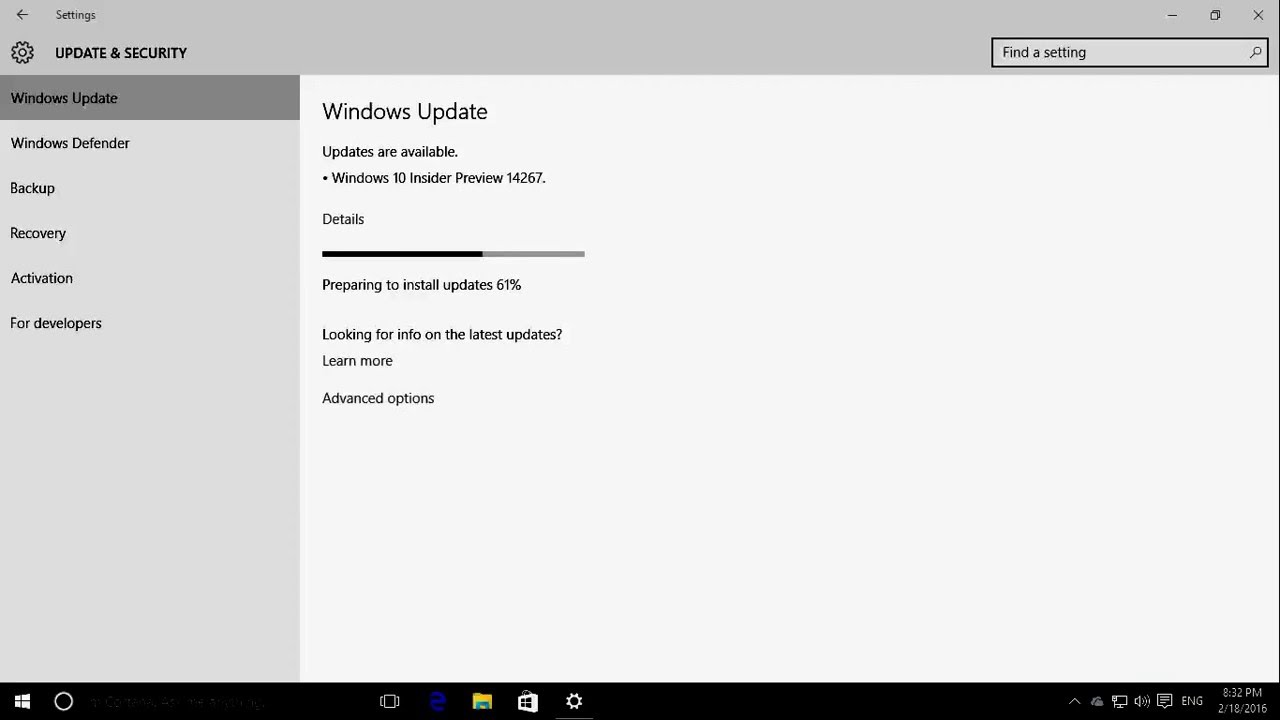
This video shows you a part of the installation of the new windows build of Windows 10 with number 14267 and the name REDSTONE.
The main changes are:
1.) Search for music has been made easier in Cortana by creating a new icon in the top right of Cortana. You can now open Cortana on your PC and click on the music search icon to have Cortana listen and search for the song that’s playing.
2.) The Favorites bar has been improved in Microsoft Edge: If you now have the favorites bar enabled in Microsoft Edge, you can now right-click on the favorites bar and choose to have it only show the favicons only. You can also right-click to add new folders in your favorites bar as well.
3.) Clearing browsing data when you exit Microsoft Edge: You can now choose to have your browsing data cleared when you exit Microsoft Edge. Just click on the three dots at the top right in Microsoft Edge and go into Settings, click on the Choose what to clear button under Clear browser data and enable Always clear this after I close the browser after choosing what data you want cleared.
4.) Improved Download Prompts are now built into Microsoft Edge: You can now configure Microsoft Edge to show a prompt when you start a download, allowing you to choose where to save the file. Just open the Microsoft Edge settings pane (the three dots at the top right) and look for the option under -Downloads settings .
Messaging + Skype improvements: You can now attach photos to your Skype messages by clicking or tapping on the paperclip icon at the lower left as you’re composing a new Skype message to a contact. Additionally, you can also invoke the Camera app to take a photo to attach to your Skype message too or send along your location.
---------------------------------------------------
Here’s what’s fixed in this 14267 release....
Choosing -Reset This PC under Settings - Update & Security - Recovery should now work as expected.
-You should no longer see a WSClient.dll error dialog after logging in.
-The front-facing camera should be usable again on PCs with Intel RealSense cameras and you should be able to use Windows Hello again.
-We fixed an issue where incorrect storage capacity was provided for the system volume, the hard drive in which Windows is installed on under Settings-System-Storage.
Known issues
We have only one known issue for this build. If you’re using Hyper-V and upgrade to this build with more than one vswitch or have multiple virtual networking adapters, including legacy, you may lose networking connectivity after upgrade. To get network connectivity back, there are two workarounds available:
-Remove all the virtual network adapters connected to the vswitch, delete the vswitch and recreate it, then reconnect their virtual NIC to the new vswitch.
-Admin command prompt, do command netcfg -d will wipe-out all the vswitch settings so that you can start from scratch.
As always – thank you for being Windows Insiders and make sure to send us feedback on any issues you run into with this build in the Windows Feedback app.
----------------------------------------------
Experiencing something that I didn't mentioned here?
Contact me & I'll add it to the comments or make another video for it!!

Комментарии

Информация по комментариям в разработке

Похожие видео

  • О нас
  • Контакты
  • Отказ от ответственности - Disclaimer
  • Условия использования сайта - TOS
  • Политика конфиденциальности

video2dn Copyright © 2023 - 2025

Контакты для правообладателей [email protected]