Logo video2dn
  • Сохранить видео с ютуба
  • Категории
    • Музыка
    • Кино и Анимация
    • Автомобили
    • Животные
    • Спорт
    • Путешествия
    • Игры
    • Люди и Блоги
    • Юмор
    • Развлечения
    • Новости и Политика
    • Howto и Стиль
    • Diy своими руками
    • Образование
    • Наука и Технологии
    • Некоммерческие Организации
  • О сайте

Скачать или смотреть QuickSetup Guide for integration between OTAV & OTACG

  • Softron Media Services
  • 2016-03-18
  • 537
QuickSetup Guide for integration between OTAV & OTACG
  • ok logo

Скачать QuickSetup Guide for integration between OTAV & OTACG бесплатно в качестве 4к (2к / 1080p)

У нас вы можете скачать бесплатно QuickSetup Guide for integration between OTAV & OTACG или посмотреть видео с ютуба в максимальном доступном качестве.

Для скачивания выберите вариант из формы ниже:

  • Информация по загрузке:

Cкачать музыку QuickSetup Guide for integration between OTAV & OTACG бесплатно в формате MP3:

Если иконки загрузки не отобразились, ПОЖАЛУЙСТА, НАЖМИТЕ ЗДЕСЬ или обновите страницу
Если у вас возникли трудности с загрузкой, пожалуйста, свяжитесь с нами по контактам, указанным в нижней части страницы.
Спасибо за использование сервиса video2dn.com

Описание к видео QuickSetup Guide for integration between OTAV & OTACG

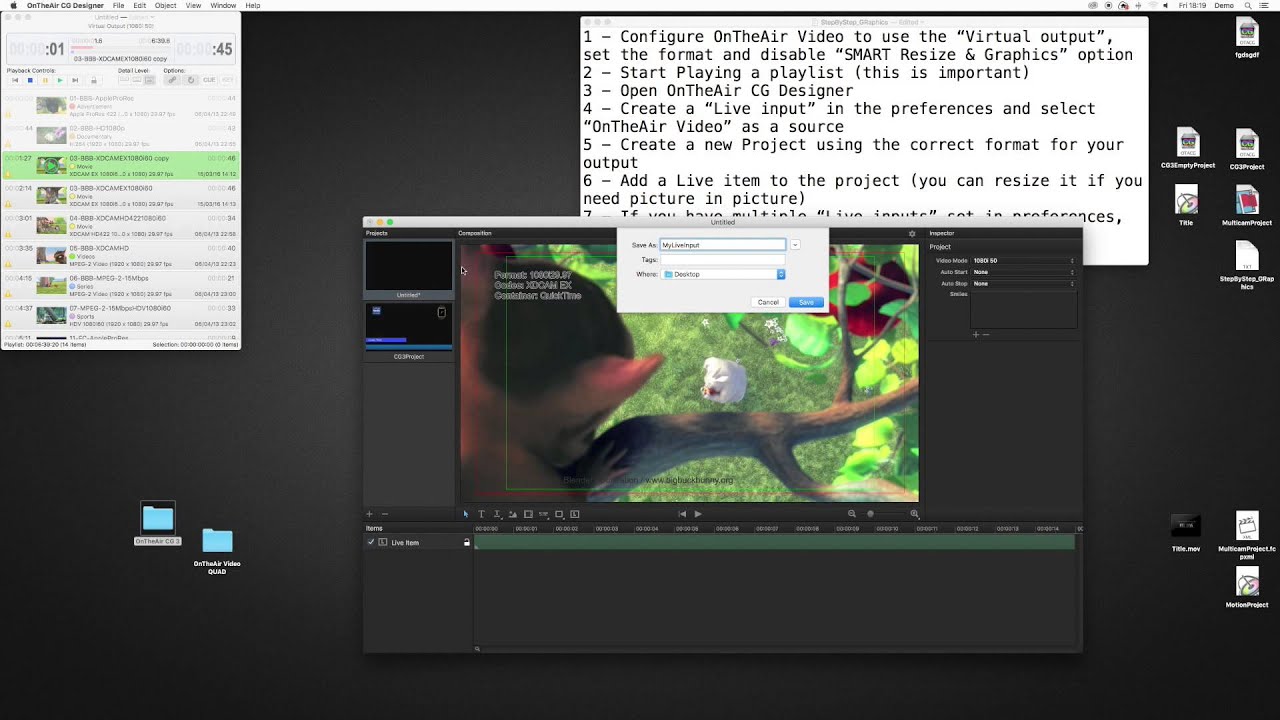
This is a quick demo video showing how to configure both OnTheAir Video and OnTheAir CG so that you can have only one video output for video and graphics, using the direct link and Live inputs features.

Note that these features allow much more than that.

Below is the text shown on screen with the step by step in case you can't read it:

1 - Configure OnTheAir Video to use the “Virtual output”, set the format and disable “SMART Resize & Graphics” option
2 - Start Playing a playlist (this is important)
3 - Open OnTheAir CG Designer
4 - Create a “Live input” in the preferences and select “OnTheAir Video” as a source
5 - Create a new Project using the correct format for your output
6 - Add a Live item to the project (you can resize it if you need picture in picture)
7 - If you have multiple “Live inputs” set in preferences, make sure to select the appropriate one.
8 - Save that Project
9 - Close OnTheAir CG Designer
10 - Open OnTheAir CG Server
11 - In the preferences, set the playback settings to use your video device and appropriate format
12 - In the preferences, create a “Live input” and make sure to use the same name as the one set in OnTheAir Cg Designer.
12 - Open the “Live” project that you have created, and make sure that it is always at the bottom of the list (so all other projects are overlaid on top of it)
13 - Play the Live project
14 - Add any other projects with graphics on top of it.

15 - You can even add a preview of both outputs with a DEMO version of MovieRecorder

Now to know how to control OTACG Server automatically from OTAV, you should read this knowledge base: https://softron.zendesk.com/hc/en-us/...

Комментарии

Информация по комментариям в разработке

Похожие видео

  • О нас
  • Контакты
  • Отказ от ответственности - Disclaimer
  • Условия использования сайта - TOS
  • Политика конфиденциальности

video2dn Copyright © 2023 - 2025

Контакты для правообладателей [email protected]