Logo video2dn
  • Сохранить видео с ютуба
  • Категории
    • Музыка
    • Кино и Анимация
    • Автомобили
    • Животные
    • Спорт
    • Путешествия
    • Игры
    • Люди и Блоги
    • Юмор
    • Развлечения
    • Новости и Политика
    • Howto и Стиль
    • Diy своими руками
    • Образование
    • Наука и Технологии
    • Некоммерческие Организации
  • О сайте

Скачать или смотреть CCB Login Instructions

  • Cassandra Webster
  • 2014-09-23
  • 104
CCB Login Instructions
  • ok logo

Скачать CCB Login Instructions бесплатно в качестве 4к (2к / 1080p)

У нас вы можете скачать бесплатно CCB Login Instructions или посмотреть видео с ютуба в максимальном доступном качестве.

Для скачивания выберите вариант из формы ниже:

  • Информация по загрузке:

Cкачать музыку CCB Login Instructions бесплатно в формате MP3:

Если иконки загрузки не отобразились, ПОЖАЛУЙСТА, НАЖМИТЕ ЗДЕСЬ или обновите страницу
Если у вас возникли трудности с загрузкой, пожалуйста, свяжитесь с нами по контактам, указанным в нижней части страницы.
Спасибо за использование сервиса video2dn.com

Описание к видео CCB Login Instructions

First of all we would like to welcome you to CCB, we are glad you here. Over the next couple of days you will be going through training/orientation process with the following steps:
1. Download and login into the system 2. Watch training video 3. Complete assessment 4. Attend Webinar and breakout sessions 5. Nesting
Once all 5 steps are completed you will be ready to take calls. Let’s get started with the first step.
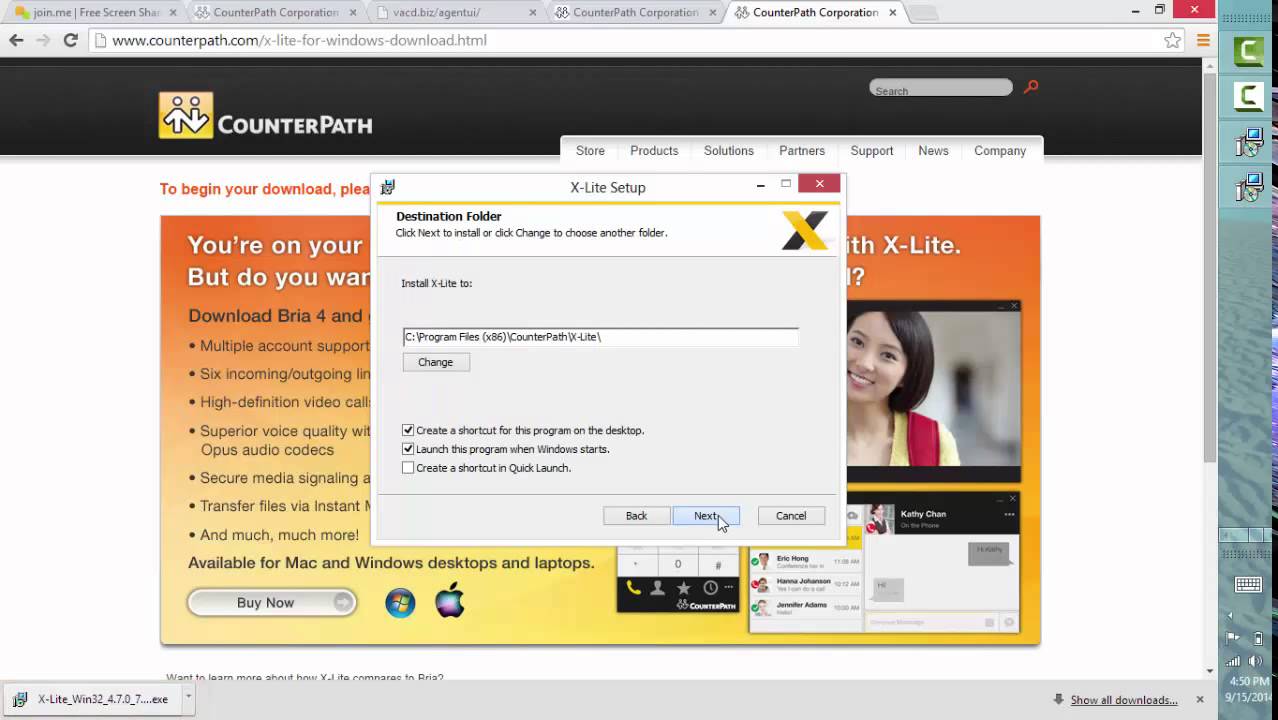
There are 2 steps logging into the system to take calls. First, we will download your softphone. Please watch the attached video to see a quick demo then click the link below to get started.
http://www.counterpath.com/x-lite-dow...
Your username is your first and last name with no spaces or caps and your password is in your email.

Once on the site, scroll down to select ‘dowload xlite for windows’. After clicking the link follow the install instructions.
Note: Be sure to UNCHECK ‘launch this program when windows start’ during the installation.
Once complete go to your desktop and open Xlite. The first time you do this you will need to go softphone, and then account settings. See the diagram below to verify what each field should read.
Now we are ready for step two. Click the link below and be sure to save it to your favorite:
http://vacd.biz/agentui/
Again, your username is your first and last name with no spaces or caps and your password will always be 123456.
If you receive a popup that says ‘inbound gate’ just UNCHECK it and proceed.
Next, you select your outbound group. In this case it will be the one registered as FLS. You will be prompted to login again.
You should hear a ringing sound and see a box pop up on your screen, click ‘answer’.

Комментарии

Информация по комментариям в разработке

Похожие видео

  • О нас
  • Контакты
  • Отказ от ответственности - Disclaimer
  • Условия использования сайта - TOS
  • Политика конфиденциальности

video2dn Copyright © 2023 - 2025

Контакты для правообладателей [email protected]