Logo video2dn
  • Сохранить видео с ютуба
  • Категории
    • Музыка
    • Кино и Анимация
    • Автомобили
    • Животные
    • Спорт
    • Путешествия
    • Игры
    • Люди и Блоги
    • Юмор
    • Развлечения
    • Новости и Политика
    • Howto и Стиль
    • Diy своими руками
    • Образование
    • Наука и Технологии
    • Некоммерческие Организации
  • О сайте

Скачать или смотреть Photoshop Tutorial: Isolate colors

  • Savvy Little Pixel
  • 2009-06-27
  • 23977
Photoshop Tutorial: Isolate colors
Photoshoptutorialcscs2cs3cs4elementsisolatecolorsblackandwhiteburnhuesaturationpentoolmarkselectionfeatherradiuscopypastecreativeicedesignsmediagroup
  • ok logo

Скачать Photoshop Tutorial: Isolate colors бесплатно в качестве 4к (2к / 1080p)

У нас вы можете скачать бесплатно Photoshop Tutorial: Isolate colors или посмотреть видео с ютуба в максимальном доступном качестве.

Для скачивания выберите вариант из формы ниже:

  • Информация по загрузке:

Cкачать музыку Photoshop Tutorial: Isolate colors бесплатно в формате MP3:

Если иконки загрузки не отобразились, ПОЖАЛУЙСТА, НАЖМИТЕ ЗДЕСЬ или обновите страницу
Если у вас возникли трудности с загрузкой, пожалуйста, свяжитесь с нами по контактам, указанным в нижней части страницы.
Спасибо за использование сервиса video2dn.com

Описание к видео Photoshop Tutorial: Isolate colors

Creative Ice Media Group
Comment, Rate, Subscribe.
Read more for step by step guide.

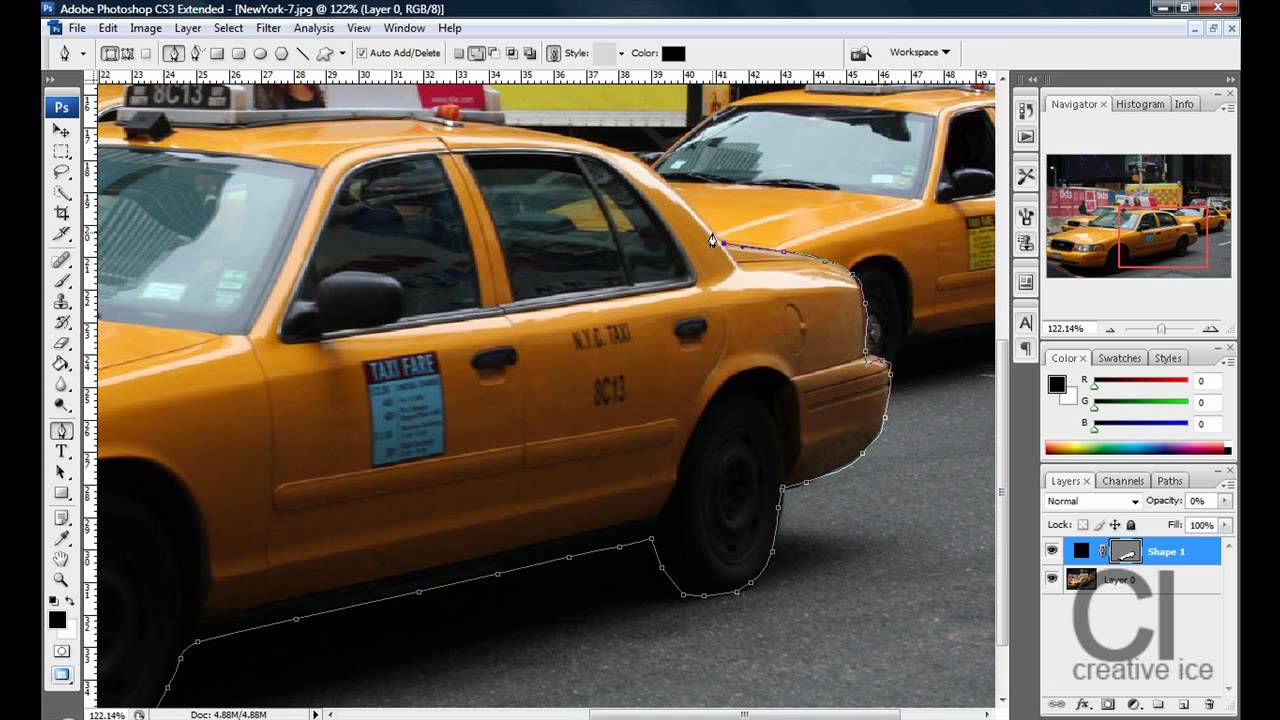
How to select a part of your image and make the background black and white whilst the selected by of the image is in color.

Step 1: Open your image into photoshop and unlock the layer.
Step 2: Start selecting the part of the image you want to stay in color with the pen tool. In my example its the main taxi.
Step 3: Once selected right click on the shape you made with the pen tool. Right click on this and press mark selection and feather radius 3 pixels.
Once the selection is made, delete the shape layer. Then click on the main image which should be called layer 0, and press CTRL + C and CTRL + V to copy and paste the selection. YOu should now have the selected part of the image in my example the taxi in a separate layer by itself.
Step 4: Click on the main layer which is called layer 0 and either press CTRL + U or go to image, adjustments, hue and saturation and make the saturation -100.
You should now have the effect.
Step 5: to make the colors look more rich copy the taxi layer so that you have two of them and choose on the newest taxi layer so that the blend mode would be soft light.

Комментарии

Информация по комментариям в разработке

Похожие видео

  • О нас
  • Контакты
  • Отказ от ответственности - Disclaimer
  • Условия использования сайта - TOS
  • Политика конфиденциальности

video2dn Copyright © 2023 - 2025

Контакты для правообладателей [email protected]