This is simply a walkthrough of how to utilize the Dark Souls 2 graphical mod software GeDoSaTo as well as the steps you need to take to get SLI running for Dark Souls 2. UPDATE!!! - I replaced the GeDoSaTo link with 0.4 version- DISCLOSURE: I am NOT the owner of the GeDoSaTo software. ALSO- Here is the DS2 SLI profile link, .nip format https://www.dropbox.com/s/4rybellonym... (save and import to Inspector) Ok, without further ado here are the steps typed-up (less helpful than watching me walk through them though...). WAIT! Make sure you disable Steam in-game Overlay before testing this mod out, game will crash if you don't. WARNING!!! You also must have AA turned on in the in-game video settings. Make sure DS2 isn't running when you apply this mod. Lastly, don't forget to go to resolution settings in-game and set your newly created resolution.
Step 1: Download GeDoSaTo http://www.mediafire.com/download/c6j...) (prior to downloading it, make a generic folder on your desktop, we'll call it DSfix, extract all files to that folder.
Step 2: Open "DSfix" folder then double click on the file "GeDoSaTo". From there you can adjust your downsample resolution, your monitor's resolution proper (this you want to leave at whatever your monitor's resolution is), enable or disable various features such as SMAA or SSAO (Antialiasing or Ambient Occlusion). WARNING! I would avoid using Bokeh Depth of Field as it is hugely taxing on your hardware with debatable returns.
NOTE: Make sure the resolution you enter into the first area, the downsample resolution, matches a 16x9 ratio (or .5625 ratio) otherwise you WILL get vertical or horizontal letter-boxing (black bars). Also, for whatever reason, 16x9 resolutions work beautifully with SLI on this game, other aspect ratios SLI virtually does nothing. Examples of good resolutions for downsampling and SLI are (5120x2880, 3200x1800, 2560x1440). If you want to use a custom resolution, just divide the render height by the render width and if you get .5625 EXACTLY you're golden. Example: 2560x1440 resolution you would take the 1440 and divide it by 2560, 1440/2560 = .5625 SLI and the downsampling doesn't seem to like 2560x1600. Not only will you get black bars at the top and bottom, but SLI won't work.
Step 3: In the "DSfix" folder you extracted all your files to, now right-click "GeDoSaToTool" and run as administrator. Leave the "Use Whitelist" box checked and simply click "activate" and minimize the window. Close out the remaining "DSfix" windows you may still have up.
Step SLI: If you want to turn SLI on for Dark Souls 2, read this. Otherwise skip to step "4".
Download Nvidia Inspector (http://www.guru3d.com/files_get/nvidi...
), then open up the software. On the right-had middle of the window you will see a little wrench, click on that. In the drop-down box toward the top, type in Dark Souls 2 and select it from the drop-down menu, click apply. Here is the DS2 SLI profile in a .nip format https://www.dropbox.com/s/4rybellonym... download, save, import to Nvidia inspector, apply changes. This is a quick way to apply the SLI changes if the other way isn't working for you.
Step "4": Open steam. You MUST turn off Steam Overlay or else the game will essentially crash when you get a friend notification. You do this by going to the "steam" icon in the top left-hand corner of the Steam home page. Click that then click, "settings" then "in-game", then uncheck the "Enable the Steam Overlay while in-game" box. Click ok. I forgot to mention this in the video or demonstrate turning it off.
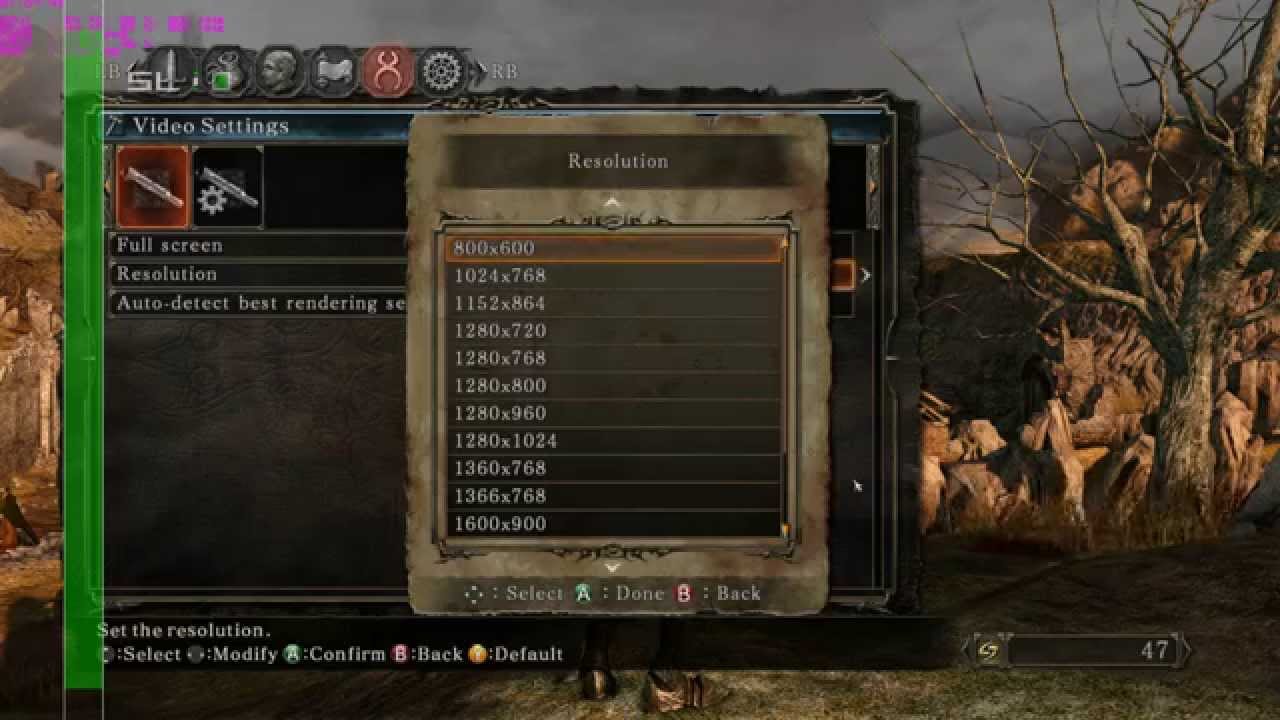
Step 5: Open Dark Souls 2. Go into the in-game video settings and set your resolution at your desired resolution. IMPORTANT! Make sure you set the resolution in the in-game settings to the one you set in the GeDoSaTo settings. This will be your downsample resolution. The game will still run at your monitor's resolution, but it will be downsampled from the resolution you selected. It's kind of nice, whatever resolution you typed-in in GeDoSaTo will show up in your in-game resolution choices.
That is it. You can go to this link here http://blog.metaclassofnil.com/?p=487 to read about what exactly GeDoSaTo is if you want to know more about it before you decide to apply this mod.
I hope this video helped any of you looking to enable SLI or get an amazing looking game looking even better. If you like this sort of instructional video (I'm a bit long-winded) please thumbs-up my video and subscribe.
Thanks for watching/reading!








![Dark Souls 2, но я копирую боссов! (нг+) [День 2]](https://i.ytimg.com/vi/U8YlehiKhks/maxresdefault.jpg)



Информация по комментариям в разработке