Get Sku Grid: http://skugrid.com/web/?ref=FreeGift
Need eBay Training?: http://dropshipevolution.com
In this video, we will show you how to handle stores that have calculated shipping and how to factor those costs into your selling price formula.
When stores have flat fee shipping or even shipping that is known before you add an item to cart and get to a checkout, typically, Sku Grid can see these shipping amounts and if you are set to Include Supplier Shipping in Calculations, it will factor the shipping costs into your pricing. However, there are many stores that do not have shipping that is known prior to checkout because the shipping costs are determined by the size and weight of the item and the zip code of the delivery address. This is called "Calculated Shipping" and it will vary per item.
It is impossible for Sku Grid to know shipping costs that are not known until you add an item to cart and go through a checkout. So when adding your items to Sku Grid, you should take additional measures to add those shipping costs into your pricing.
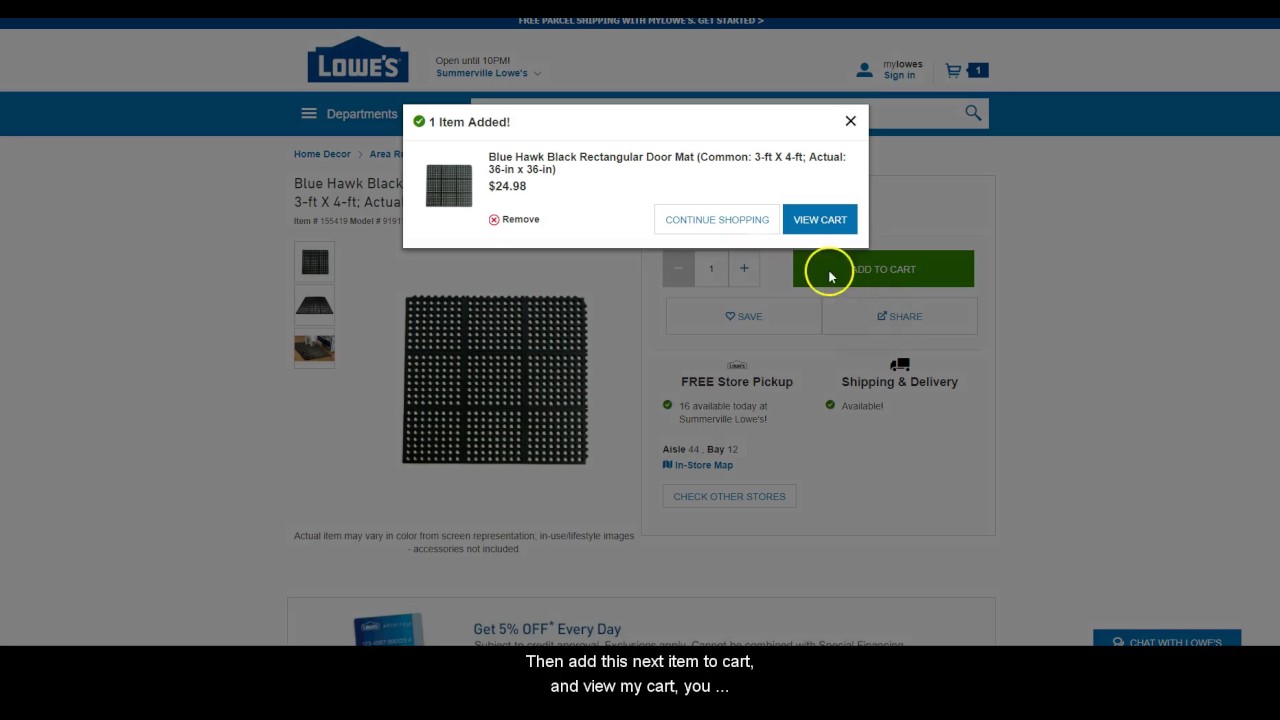
Let's take this item from Lowes for example. Lowes does not offer a fixed amount of shipping (for example $5.99 shipping for items under $49 like some other stores). Also notice, how on the product page, there is no shipping amount shown. However, when you add the item to cart, then click on View Cart.
Select Parcel Shipping. Then you will see that the standard shipping costs for this particular item is $5.99.
Now if I remove this item from my cart.
Then add this next item to cart, and view my cart, you will see that this item's shipping rate is $7.99 because Lowes has calculated based on the item's shipping weight, that it should have a higher shipping amount. Again, when shipping is not known on the product page or the store does not use flat rate or tiered shipping, Sku Grid cannot factor it in. So I will now show you how to adjust your formula for these shipping costs.
Once you are logged in to Sku Grid, click on Add Item.
You will fill in all of the item details as you normally would. Then scroll down and click Override Default Selling Formula.
Click the Blue Wizard Button.
Enter in the values to create your formula. In this example, I'll start by adding 9 for Vendor Tax.
10 for Margin Percentage.
0 for Fixed Margin.
3 for Minimum Margin.
2.9 for Paypal Fees Percentage.
0.30 for the Paypal Transaction Fee
9 for Selling/Other Fees.
Now, this would be an example of how to enter a formula normally, however, since we need to add in shipping costs, we should factor the shipping amount into both the Fixed Margin and Minimum Margin. To do this, just increase the value of those 2 fields by the shipping amount.
So in this example, since my normal formula had 0 for Fixed margin and I want to add in my shipping cost of $7.99, since 0 + 7.99 is 7.99, I'd enter 7.99 for the Fixed Margin.
Since my original formula had 3 for Minimum Margin and I want to add in my shipping cost of $$7.99, since 3 + 7.99 is 10.99, I'd enter 10.99 for the Minimum Margin. Both the fixed and minimum margin have to be increased to account for the shipping costs.
Then, click Estimate Price.
Enter the supplier price of the item.
Sku Grid will then show you what it will reprice your item to.
Close out of the Estimator.
Close the Wizard.
Click Add Item.
Note: If you were editing an existing entry in Sku Grid, then you would click Update Item and then Force Reprice the item once you return back to the grid.
Thanks for watching! We'll see you in the next video.
• Sku Grid: Special Stores - How to Handle S...
Incoming Search Terms: Sku Grid, Skugrid, Sku Grid Calculated Shipping, Skugrid Calculated Shipping, Sku Grid Add Shipping, Skugrid Add Shipping, Sku Grid Shipping Costs, Skugrid Shipping Costs, Sku Grid Override, Skugrid Override, Sku Grid Pricing, Skugrid Pricing, Sku Grid Training, Skugrid Training, Sku Grid Tutorials, Skugrid Tutorials, Sku Grid Support, Skugrid Support

Информация по комментариям в разработке