Get Sku Grid: http://skugrid.com/web/?ref=FreeGift
In this video, we will show you how to set up your Default Selling Price Formula that determines the selling price of your Bonanza items.
We will be setting it up using dollar/pound amount profit margins. Some sellers find working in dollar/pound amounts is easier to work with.
Once logged into Sku Grid, Navigate to Settings.
Click Marketplaces.
Click Bonanza
Click the Country you're selling on.
Scroll down to the area that says Calculating Bonanza's Selling Price.
You will see a blue button that says Switch to Wizard View and below that will be your Selling Price Formula -- it's a very long, complex formula.
Most people will not want to manually type out a formula as it's very easy to make human error. It is always best to work from within the formula wizard.
Click the Switch to Wizard View button.
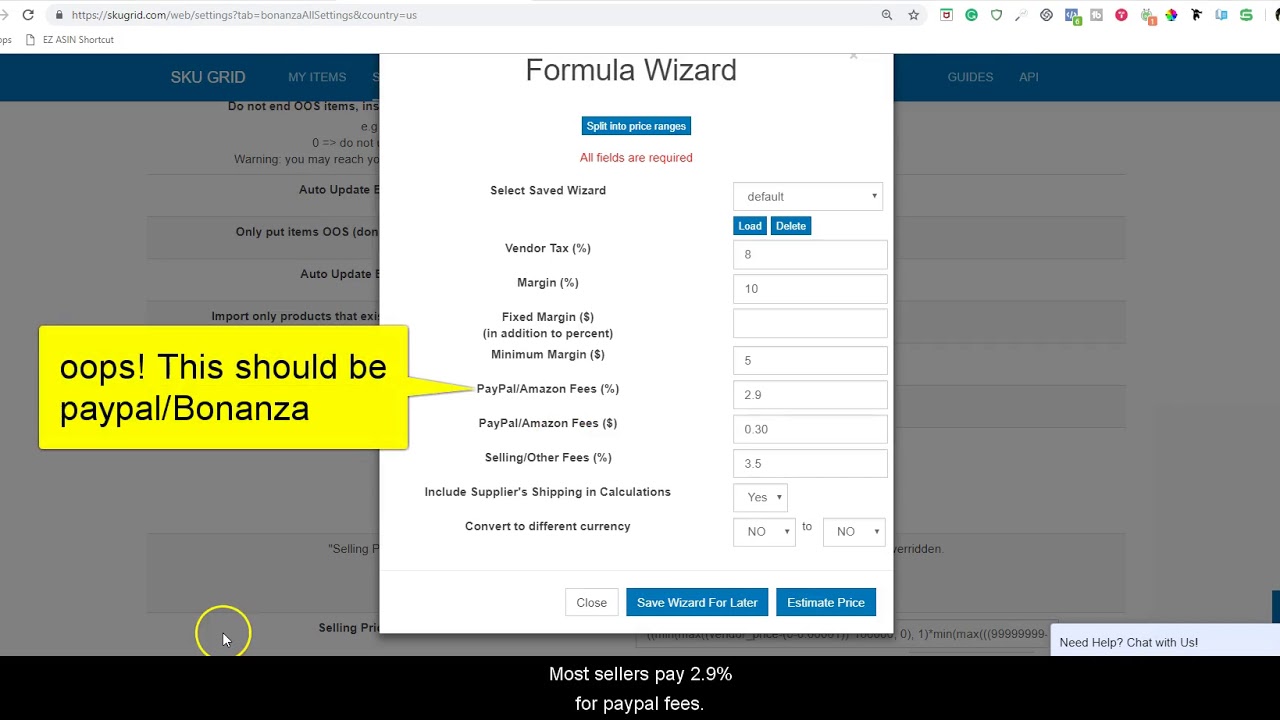
Start by filling in the variables that you know.
Vendor Tax is the amount that you would like factored in to your prices in the event that your supplier charges sales tax and you want to be able to cover it instead of taking a loss. Depending on the suppliers that you use, you may or may not want to factor in Vendor Tax as some stores only charge sales tax in a minimal amount of states.
But if you do want to factor Vendor Tax into your formula, enter a number here. Most sales tax ranges from 5-10%. In this example, we will enter 8. Keep in mind, using this example, if we enter 8 but when we purchase an item from the supplier and based on the buyer's address, the sales tax is actually 9%, it will cut into our profits or you may end up taking a loss if you are not factoring in enough vendor tax. Remember vendor tax is calculated based on supplier cost and not your selling price.
Next, we will go down and enter our Fees. There is an option for Paypal /Bonanza Fees %. Most sellers pay 2.9% for paypal fees. Some sellers have a higher rate. Enter your Paypal Fee percentage here. You can choose to add in your Bonanza fees to this amount as well.
Next, is Paypal/Bonanza Fees $. This is the transaction fee for Paypal/Bonanza. For most people it is 30 cents for Paypal, Type 0.30 here. Or if you have a Bonanza transaction fee that you need to enter, you can enter that here as well.
The next option for fees is Selling Other Fees. This is where you put your Bonanza Fee Percentage (if you have not already included it above. Bonanza has many different fee structures starting at 3.5% and the prices go up depending on your advertising level. Check with Bonanza to make sure that you're account for the correct fee % regardless of where you put it at in this form.
Now that the fees are taken care of, we can go and work on our profit margins. Instead of working in the Margin % and Minimum Margin Fields, we will work in the Fixed Margin $ and Minimum Margin $ fields so that we set up our profit margins in dollar/pound amounts.
For Fixed Margin $, enter the dollar/pound amount you would like to receive in profit after fees. Please note: If you're working on the Bonanza US tab, the US Dollar currency is assumed. If you are working on the Bonanza UK tab, the Great Britain Pound currency is assumed even though you see the dollar sign denoted and so on.
As an example, let's say that we want everything by default to be listed with a $3 profit. We would simply enter 3 here. Enter your desired fixed profit margin here. Note: You can enter negative numbers as well if you're looking to go into negative profit ranges.
Minimum Margin should also be filled out. Your minimum margin is the lowest amount of money you would like to receive as a profit on the items by default. Since you're working in dollar amount (or pound amount) profits, your Minimum Margin would need to be the same as what you entered above for the Fixed Margin $ field. So, sticking with this example, we'll enter 3 here.
Now that you've filled out everything that is necessary to create your default selling formula, you can click on Estimate Price. Enter in an example supplier cost (we'll use 100 for easy math). Click OK. Sku Grid will then show you what it would price the item to using the formula that you just created. So using this example, this is the selling price for a $100 supplier item using the formula we created for this demonstration. Click OK again to close that pop up.
Once satisfied with your formula, click the Close Button to close the Wizard.
Scroll down to the bottom of the page and save settings.
• Sku Grid for Bonanza Sellers: How to Set U...
Incoming Search Terms: Sku Grid, Skugrid, Sku Grid Bonanza, Sku Grid Marketplace, Sku Grid Bonanza Formula, Sku Grid Bonanza Formula Dollar Amount, Sku Grid Bonanza Margins Dollars, Sku Grid Set Up Bonanza, Bonanza, Bonanza Booth, Bonanza vs eBay, Selling on Bonanza, Bonanza Listings, Online Stores, Dropship on Bonanza, Retail Arbitrage Bonanza, List on Bonanza, Sku Grid Training, Sku Grid Tutorial, Sku Grid Support,

Информация по комментариям в разработке