Logo video2dn
  • Сохранить видео с ютуба
  • Категории
    • Музыка
    • Кино и Анимация
    • Автомобили
    • Животные
    • Спорт
    • Путешествия
    • Игры
    • Люди и Блоги
    • Юмор
    • Развлечения
    • Новости и Политика
    • Howto и Стиль
    • Diy своими руками
    • Образование
    • Наука и Технологии
    • Некоммерческие Организации
  • О сайте

Скачать или смотреть Create Dual Partition Hard Drive using Virtual Box

  • Jerry Rayel
  • 2025-07-28
  • 137
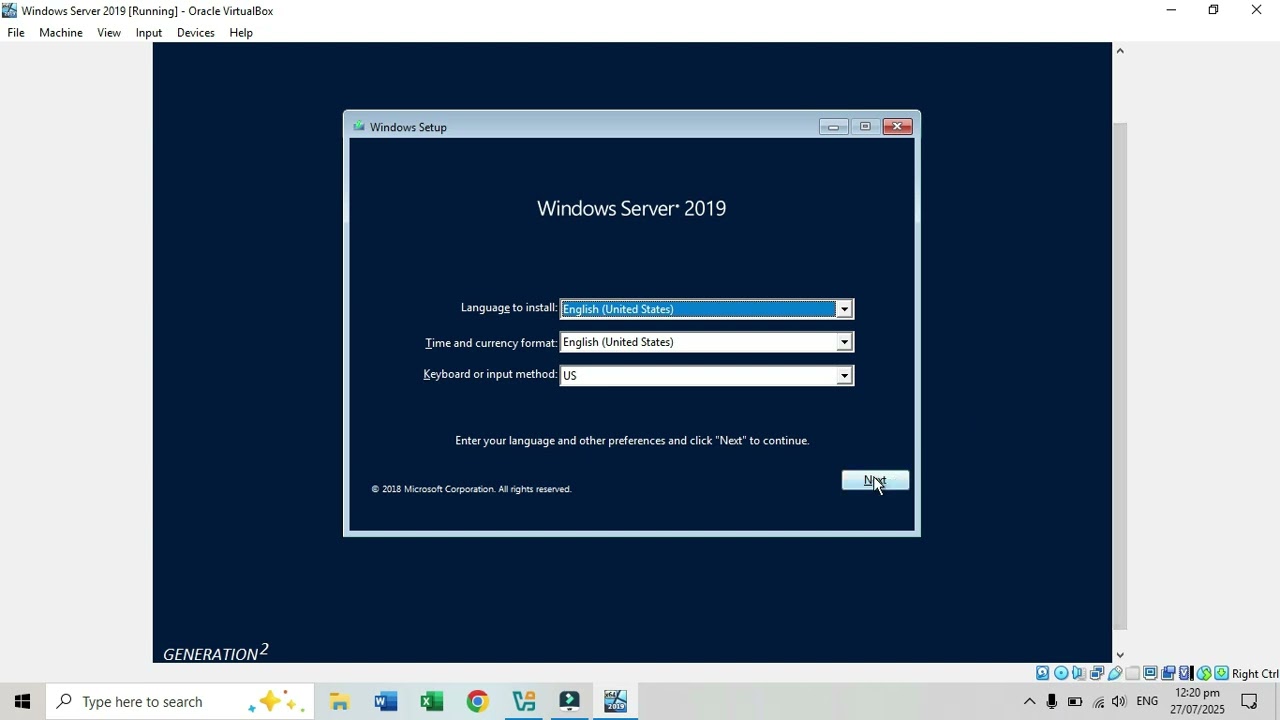
Create Dual Partition Hard Drive using Virtual Box
  • ok logo

Скачать Create Dual Partition Hard Drive using Virtual Box бесплатно в качестве 4к (2к / 1080p)

У нас вы можете скачать бесплатно Create Dual Partition Hard Drive using Virtual Box или посмотреть видео с ютуба в максимальном доступном качестве.

Для скачивания выберите вариант из формы ниже:

  • Информация по загрузке:

Cкачать музыку Create Dual Partition Hard Drive using Virtual Box бесплатно в формате MP3:

Если иконки загрузки не отобразились, ПОЖАЛУЙСТА, НАЖМИТЕ ЗДЕСЬ или обновите страницу
Если у вас возникли трудности с загрузкой, пожалуйста, свяжитесь с нами по контактам, указанным в нижней части страницы.
Спасибо за использование сервиса video2dn.com

Описание к видео Create Dual Partition Hard Drive using Virtual Box

Create a Dual partition Hard Drive for Local Disk C:60% and Local Disk D:40%?

Show conversion, formula and solution?
Given: Hard Disk Drive = 120GB
Data unit Conversion: 1GB = 1024 MB

Let’s create a dual partition on a *120GB hard disk*, splitting it into desired preference:
*Local Disk C: 60%
*Local Disk D: 40%

We'll also show:
The conversion from GB to MB
The formula and solution

Step 1: Total Hard Disk Size
Given:
Hard Disk = 120 GB
120GB = 122, 880 MB


Step 2: 60% Partition Formula
To find 60% of the disk:
Partition size(GB) = 60/100 x 120 = 72GB

So for C: will get 72GB while for**D:** will get 48GB

Step 3: Convert GB to MB
Given:
1 GB = 1024 MB
72 GB x 1024 = 73,728 MB

**Each partition (C: and D:) =
C: 73,728 MB**
D: 49,152MB**

Final Answer:

| Drive | Size in GB | Size in MB |
C: 72 GB → 73,728 MB
D: 48 GB → 49,152 MB

Summary of Formula:**
1. Partition in GB = (Percentage ÷ 100) × Total GB
→ 60% × 120 = 72 GB
2. Convert to MB = GB × 1024
→ 72 × 1024 = 73,728 MB


When you partition a hard drive into two parts— 60% for Local Disk C and 40% for Local Disk D—you need to apply New and format the 40% (Local Disk D) for a few important reasons:

🔹 1. “Apply” Creates the Partition
When you divide the remaining 40% into a new partition (Local Disk D), you're telling the system:
“Use this unallocated space to make a new drive.”
Until you apply the change, the space stays unallocated and invisible to Windows File Explorer.

🔹 2. “Format” Prepares It for Use
Formatting sets up a file system (like NTFS or exFAT) so the operating system can read/write files.
Without formatting:
Windows won’t recognize the new partition as a usable drive.
You can’t save files to it or open it.

🔹 Why is C: Not Needing Reformat?
Usually, C: drive is already formatted during the installation of Windows.
That’s why you don’t have to reformat it again unless you're reinstalling the OS.

🔧 Summary:
You must apply to create the partition, and format it to make it usable.
Without formatting, the new partition (Local Disk D) remains raw and unreadable by the system.

Note: If you forgot to Partition the Hard Drive during windows installation, you have an option to Create Partition on Disk Management. GoodLuck!

Learn to Create on Disk Management for my next video tutorial?

Please Like and subscribe!


Music: bensound.com
License code: SPLGHEBEYTKWDFIP
Artist: : Benjamin Tissot

Комментарии

Информация по комментариям в разработке

Похожие видео

  • О нас
  • Контакты
  • Отказ от ответственности - Disclaimer
  • Условия использования сайта - TOS
  • Политика конфиденциальности

video2dn Copyright © 2023 - 2025

Контакты для правообладателей [email protected]