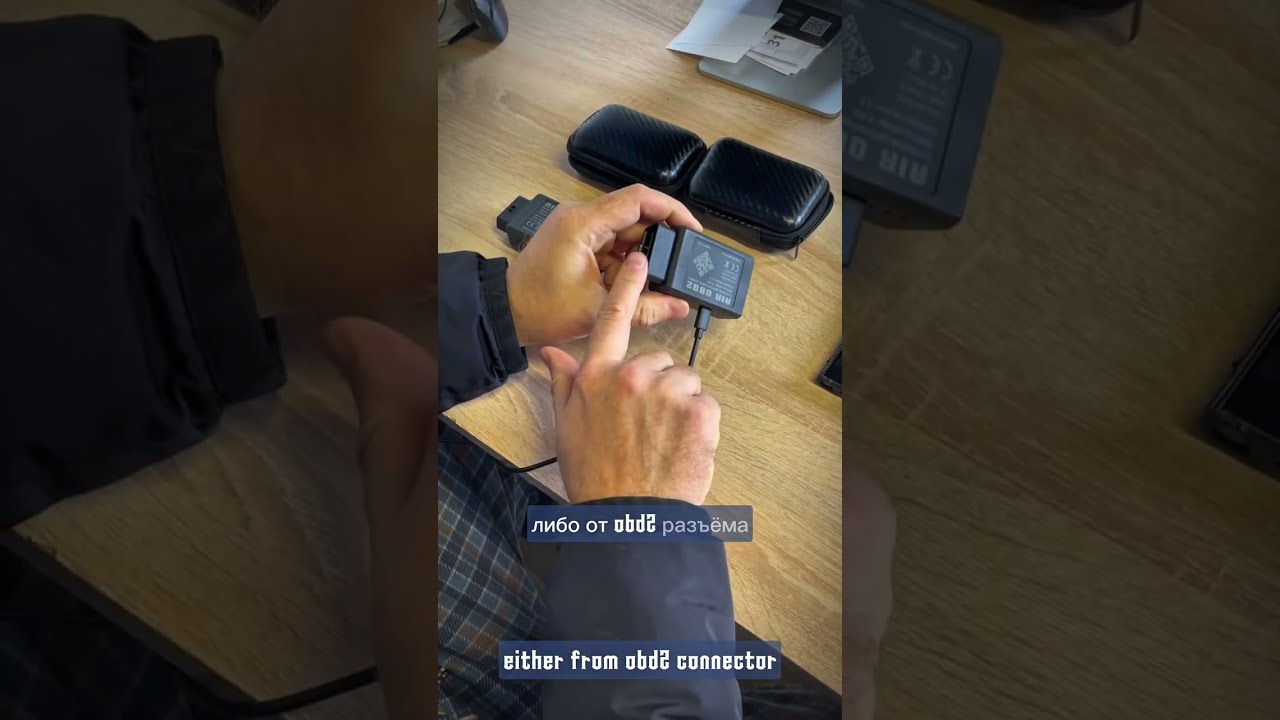
To set up Air-OBD2, you need to connect the device to a phone or computer to configure it. To do this, you need to hold the configuration button, supply power either through a connector or connect it to the diagnostic connector. The blue indicator will flash once a second. This means that the device has gone into configuration mode. On the phone or computer, searching for the network. Find a network named Air-OBD2, connect to it using password 12345678. After connecting to the Wi-Fi network, you need to go to the browser and type the IP address 192.168.4.1. In the window that opens, you will see a configuration page that has the device settings and configuration. The top will display the mac address and firmware version. Below you will see AirID, which is your device ID for the server, which allows you to connect two devices to a common network. It should consist of five characters, a number or a letter and should be the same on MASTER, on SLAVE. In the bottom menu, at the bottom of the menu, you need to adjust it. SSID and PASSWOR of your router or phone that MASTER or SLAVE connects to. In order for a device to connect to the Internet, the menu has a speed setting that allows you to set either fixed, automatic, or Slave mode speed. As a rule, all cars have a speed of 500 kb/s. Some trucks have 250, and special equipment even 125kb/s. If you have any doubts, it is better to try 500. If it doesn't work out, you can set the speed in Auto mode for master and slave mode for SLAVE AIR-OBD2.
Set up both devices to connect them. To do this, let's go to the configuration of the second device. And we'll make the settings. Go to the IP address 192.168.4.1 and set up too. The second device. AIRIDs must match so that the server knows who to connect to whom. In the CAN settings, you can install AUTO MODE in one device. MASTER is connected to the diagnosis. When the diagnosis will submit requests to MASTER. It will determine the speed at which the request occurs and transmit it to SLAVE. The SLAVE device can be at fixed speed or in SLAVE MODE mode. Slave Air-OBD will set the speed received from the master. The only connection in this mode is not from the first request, usually from the second. Let's connect two devices to a power source to connect to the Internet.
Let's check their connections on the server described in the instructions. You can go in, enter your AirID, and see who is on the service right now and which devices are connecting. Indicators in blue flashes quickly this connection to the router when the LED stops glowing the device is connected, and when the device is connected to each other, the indicator will glow constantly blue. At this point, the server will display arrows against each other that identify that the devices have established a direct connection between themselves. You can tell by address which of these devices has, which IP. IP addresses should be different. Otherwise, the provider may misconfigure you. So you can look at the IP address of the device, it will be displayed when it makes contact. And when the connection status is connected, you can determine which device is connected. There are situations where Master and Slave are checked at the same time. At the same time, one is connected to the router, the second to the phone, but the phone also has a wifi connection of this router. For the server, the IP address will be the same, so if you connect nearby, it is advisable to turn off WIFI in the phone.
According to the indicator, there is a blue LED that displays the status of work with the server and the second device, green displays which CAN is selected. In this case, if both greens are burning, it means that the first CAN has been selected in both Air-OBDs. The second CAN is usually rarely used. Some cars use it to configure multimedia blocks. The red LED displays data collection from CAN.
After successfully installing communication, you will see a connection setup line on the server. If the connection is on the server and the blue LED is not glowing, you can check your provider on NAT. AIR-OBD works on the first and second type NAT. By clicking on the link that is in the instructions, you can check your NAT type of your provider. If the provider, say, has a third group, then the connection will not take place because it prohibits direct connections between customers. There are situations where your provider does not give you free ports to connect directly with each other, usually with mobile operators. Put the telephone into Avio mode for 10 seconds.

Информация по комментариям в разработке