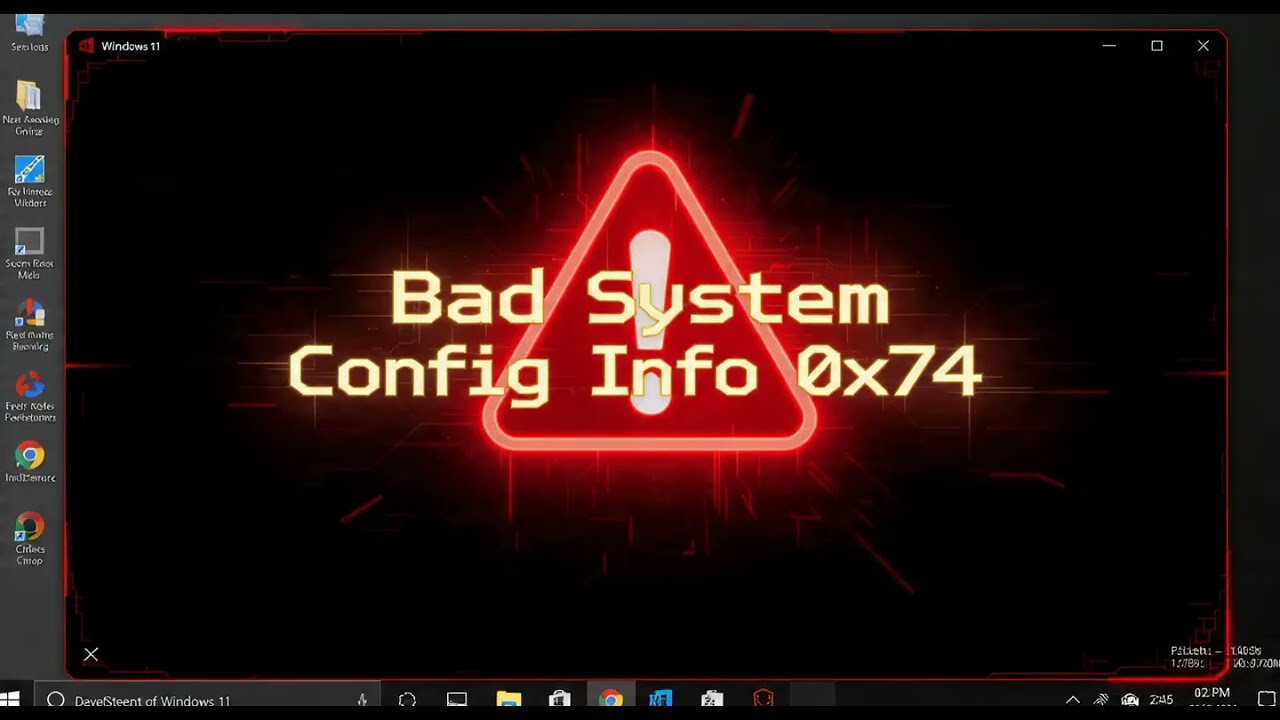
How to fix Bad System Config Info 0x74 error in Windows
Are you struggling with the Bad System Config Info error 0x74 on your Windows PC? This comprehensive guide shows you how to fix Blue Screen of Death (BSOD) errors, resolve the stop code 0x00000074, and get your computer booting smoothly again. Whether you’re facing a boot loop, corrupted registry hive issues, or Windows failed to start errors, we walk you through troubleshooting steps, including using Command Prompt in Recovery Mode, fixing the BCD (Boot Configuration Data), repairing corrupted system files, and restoring the Windows Registry. This step‑by‑step solution helps you fix system configuration problems for Windows 11 and Windows 10, recover access to your desktop, and prevent Bad System Config Info errors in the future.
In This Video We Will See How to fix Bad System Config Info 0x74 error in Windows.
Here Are The 👇👇👇
|- Methods Of : How to fix Bad System Config Info 0x74 error in Windows -|
Method 1
1. Boot into Windows Recovery Environment (WinRE)
2. Click Troubleshoot
3. Click Advanced options
4. Click Command Prompt
5. Type "bcdedit /deletevalue {default} numproc" and press Enter
6. Type "bcdedit /deletevalue {default} truncatememory" and press Enter
7. Type exit and press Enter
8. Restart Your Computer
9. Method End
Method 2
1. Boot into Windows Recovery Environment (WinRE)
2. Click Troubleshoot
3. Click Advanced options
4. Click Command Prompt
5. Type "sfc /scannow /offbootdir=C:\ /offwindir=C:\windows" and press Enter
6. Wait for the scan to finish
7. Type exit and press Enter
8. Restart Your Computer
9. Method End
Method 3
1. Boot into Windows Recovery Environment (WinRE)
2. Click Troubleshoot
3. Click Advanced options
4. Click Command Prompt
5. Type "C:" and press Enter
6. Type "cd windows\system32\config" and press Enter
7. Type "ren SYSTEM SYSTEM.old" and press Enter
8. Type "copy C:\windows\system32\config\RegBack\SYSTEM C:\windows\system32\config" and press Enter
9. Type exit and press Enter
10. Restart Your Computer
11. Method End
Method 4
1. Boot into Windows Recovery Environment (WinRE)
2. Click Troubleshoot
3. Click Advanced options
4. Click Startup Repair
5. Wait for Windows to diagnose and fix the PC
6. Click Finish
7. Restart Your Computer
8. Method End
Topic Covered:
Bad System Config Info, fix error 0x74, Windows 11 BSOD fix, stop code 0x00000074 solution, Windows 10 boot error, fix bad_system_config_info, Windows registry repair, BCD error fix, Command Prompt boot fix, how to fix blue screen Windows, Windows recovery mode steps, repair corrupted BCD, system configuration error, fix Windows boot loop, Windows troubleshooting guide, PC registry fix, restore windows registry, best BSOD fix tips, Windows startup repair, fix corrupted system files, stop system config error.

Информация по комментариям в разработке