Logo video2dn
  • Сохранить видео с ютуба
  • Категории
    • Музыка
    • Кино и Анимация
    • Автомобили
    • Животные
    • Спорт
    • Путешествия
    • Игры
    • Люди и Блоги
    • Юмор
    • Развлечения
    • Новости и Политика
    • Howto и Стиль
    • Diy своими руками
    • Образование
    • Наука и Технологии
    • Некоммерческие Организации
  • О сайте

Скачать или смотреть 🔧 How to Set a Static IP Address on Linux 🌐

  • SUVANSH BADONI
  • 2024-08-04
  • 109
🔧 How to Set a Static IP Address on Linux 🌐
  • ok logo

Скачать 🔧 How to Set a Static IP Address on Linux 🌐 бесплатно в качестве 4к (2к / 1080p)

У нас вы можете скачать бесплатно 🔧 How to Set a Static IP Address on Linux 🌐 или посмотреть видео с ютуба в максимальном доступном качестве.

Для скачивания выберите вариант из формы ниже:

  • Информация по загрузке:

Cкачать музыку 🔧 How to Set a Static IP Address on Linux 🌐 бесплатно в формате MP3:

Если иконки загрузки не отобразились, ПОЖАЛУЙСТА, НАЖМИТЕ ЗДЕСЬ или обновите страницу
Если у вас возникли трудности с загрузкой, пожалуйста, свяжитесь с нами по контактам, указанным в нижней части страницы.
Спасибо за использование сервиса video2dn.com

Описание к видео 🔧 How to Set a Static IP Address on Linux 🌐

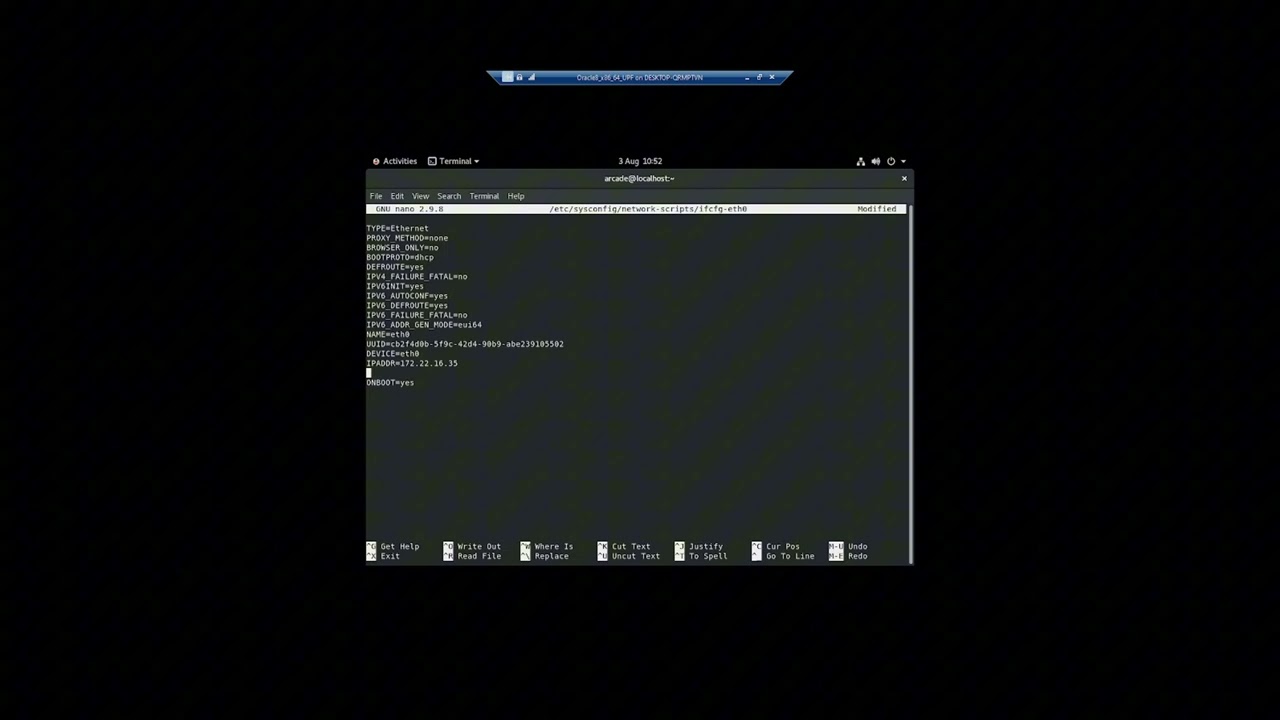
In this video, I walk you through the step-by-step process of setting a static IP address for an Oracle Linux virtual machine running on Hyper-V. Follow along as I demonstrate how to configure the network settings, edit the necessary files, and ensure your VM maintains a consistent IP address. Whether you're managing a development environment or a production server, this tutorial will help you achieve reliable network configuration. Be sure to like, subscribe, and comment if you found this video helpful!

#### Steps Covered:
1. ▶️ *Starting the Oracle Linux VM and Logging In*
Start your Oracle Linux VM.
Log in to the system.

2. 🔍 *Identifying the Network Interface*
Open a terminal.
Run the command:
```
ip a
```

3. 📝 *Editing the Network Configuration File*
Backup the current configuration:
```
sudo cp /etc/sysconfig/network-scripts/ifcfg-eth0 /etc/sysconfig/network-scripts/ifcfg-eth0.bak
```
Open the network script for `eth0`:
```
sudo nano /etc/sysconfig/network-scripts/ifcfg-eth0
```
Modify the file to set a static IP:
```
TYPE=Ethernet
BOOTPROTO=none
DEFROUTE=yes
NAME=eth0
DEVICE=eth0
ONBOOT=yes
#IPADDR=172.22.16.35 # Add yours ip here
PREFIX=20
GATEWAY=172.22.16.1 # add your Gateway here
DNS1=8.8.8.8
DNS2=8.8.4.4
```

4. 🔄 *Restarting the Network Service with NetworkManager*
Save the file and exit the editor.
Restart the network service using NetworkManager:
```
sudo systemctl restart NetworkManager
```

5. ✅ *Verifying the Configuration*
Verify the static IP configuration:
`` ip a
```

6. 🌐 *Testing Connectivity*
Test the network connectivity:
```
ping google.com
```

Stay tuned for more tutorials and tips on Oracle Linux and Hyper-V management! 😊

Комментарии

Информация по комментариям в разработке

Похожие видео

  • О нас
  • Контакты
  • Отказ от ответственности - Disclaimer
  • Условия использования сайта - TOS
  • Политика конфиденциальности

video2dn Copyright © 2023 - 2025

Контакты для правообладателей [email protected]