Logo video2dn
  • Сохранить видео с ютуба
  • Категории
    • Музыка
    • Кино и Анимация
    • Автомобили
    • Животные
    • Спорт
    • Путешествия
    • Игры
    • Люди и Блоги
    • Юмор
    • Развлечения
    • Новости и Политика
    • Howto и Стиль
    • Diy своими руками
    • Образование
    • Наука и Технологии
    • Некоммерческие Организации
  • О сайте

Скачать или смотреть The Client Dashboard

  • BuildBook
  • 2021-09-03
  • 1049
The Client Dashboard
  • ok logo

Скачать The Client Dashboard бесплатно в качестве 4к (2к / 1080p)

У нас вы можете скачать бесплатно The Client Dashboard или посмотреть видео с ютуба в максимальном доступном качестве.

Для скачивания выберите вариант из формы ниже:

  • Информация по загрузке:

Cкачать музыку The Client Dashboard бесплатно в формате MP3:

Если иконки загрузки не отобразились, ПОЖАЛУЙСТА, НАЖМИТЕ ЗДЕСЬ или обновите страницу
Если у вас возникли трудности с загрузкой, пожалуйста, свяжитесь с нами по контактам, указанным в нижней части страницы.
Спасибо за использование сервиса video2dn.com

Описание к видео The Client Dashboard

For more information about what the client sees in BuildBook: https://help.buildbook.co/en/articles...

BuildBook offers Construction Project Management Tools for the Modern Builder. Residential construction and design professionals can take advantage of the full suite of tools from sales and marketing to project management.

Start a free trial at https://buildbook.co

Transcript:

After you have some key elements of your project in place and have decided to invite your client, they'll have their own Dashboard when they log in where they can get project updates, view your schedule, and communicate with you on the project.

When your client logs in, a few key differences between their Dashboard and what you see on the Pro side are that you'll notice your branding is front and center and the BuildBook branding falls off. You can see your logo in the top left.

They also see an Updates tab versus the Home tab.

Your client can easily access their Dashboard the same way you do by either logging in at www.buildbook.co or through the mobile app. You can also share a direct link to the project with them as well.

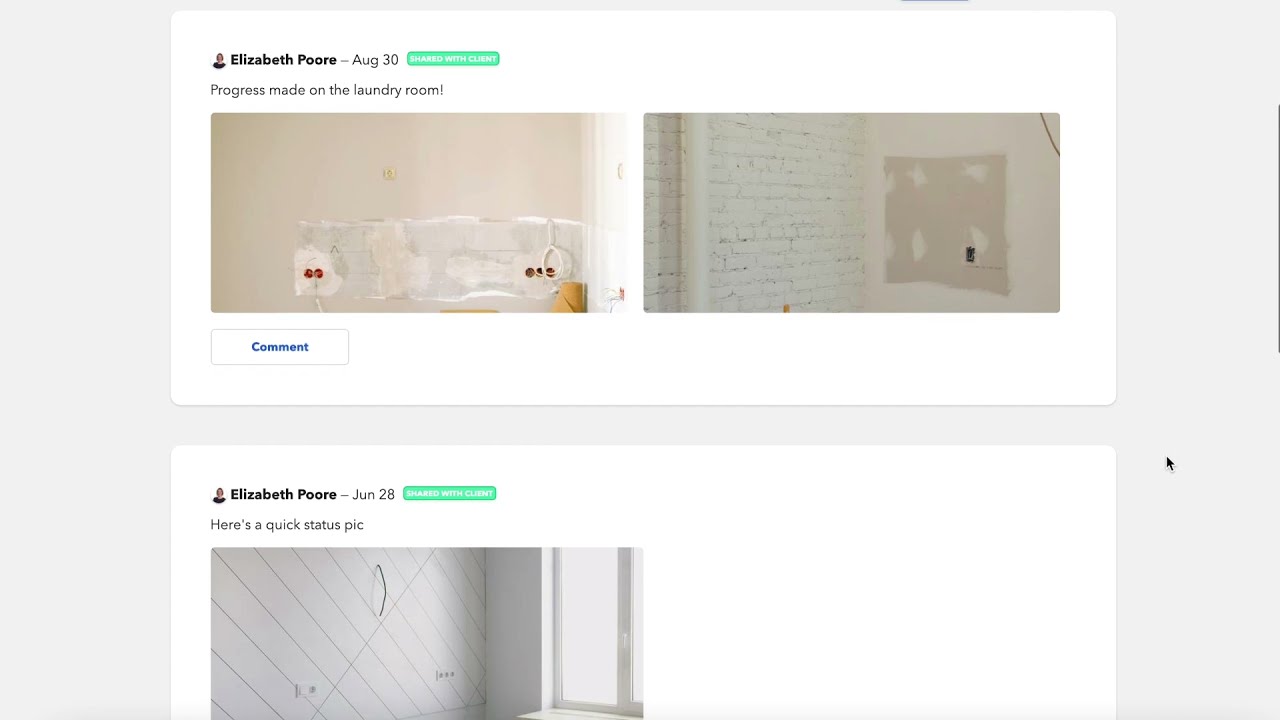
The Updates tab in their Dashboard is the first thing your client will see. This information comes straight from the Daily Logs that you've chosen to share with them, and it's a great place to give them regular updates on the progress of your project.

We recommend creating a welcome post for any new projects in your Daily Logs that you share with your client, just welcoming them and letting them know that you'll be using this platform for all of your project updates. That way, if you don't have any other updates, when they first log in it will be the first thing they see on their page.

The Schedule View that the client sees is not the full detailed Gantt Chart View that the Pro Team has, rather it's a Calendar View, and it shows all of the project Phases along with any Tasks that have been shared with them - and those Selection Categories and Budget items that show up with a due date.

They can still open these items up to interact with them and add any comments as well.

The client Chat tab on the Client Dashboard allows them to send and receive Chat messages from both Pro Team Members and Collaborators who have full access to the project. You'll see that the Team Chat is not visible here since they only have access to the Client Chat.

The Task tab on the Client Dashboard allows them to view and interact with any Tasks that have been shared with them and/or assigned to them. Keep in mind that clients can interact with Tasks, so they are able to mark Tasks off as “Complete,” change due dates, and even create their own Tasks.

Budget and Selections are both read-only to the client, so they cannot open up and edit any items, but they can still have conversations with you about specific items in the comments.

Clients can also upload their own files, but only have access to what you have chosen to share with them. Any files that they upload will automatically appear on your side.

Keep in mind that any Tasks and Daily Logs that appear in the Updates will only appear for the client when you have chosen to share those with them.

Clients also have access to a few Settings. If they click on the Settings from their avatar, just like you have on your side, they can add a profile picture and adjust their notification settings.

They also have the same notification bell as you, so they can click that and see any comments or information that they've been assigned to including new Logs.

And they can also reach out to support if they have any questions, just like you can.

Комментарии

Информация по комментариям в разработке

Похожие видео

  • О нас
  • Контакты
  • Отказ от ответственности - Disclaimer
  • Условия использования сайта - TOS
  • Политика конфиденциальности

video2dn Copyright © 2023 - 2025

Контакты для правообладателей [email protected]