Logo video2dn
  • Сохранить видео с ютуба
  • Категории
    • Музыка
    • Кино и Анимация
    • Автомобили
    • Животные
    • Спорт
    • Путешествия
    • Игры
    • Люди и Блоги
    • Юмор
    • Развлечения
    • Новости и Политика
    • Howto и Стиль
    • Diy своими руками
    • Образование
    • Наука и Технологии
    • Некоммерческие Организации
  • О сайте

Скачать или смотреть How to Install Window 10 Over Windows 7 || Irfan Aslam

  • Irfan Computer College
  • 2024-09-30
  • 293
How to Install Window 10 Over Windows 7 || Irfan Aslam
  • ok logo

Скачать How to Install Window 10 Over Windows 7 || Irfan Aslam бесплатно в качестве 4к (2к / 1080p)

У нас вы можете скачать бесплатно How to Install Window 10 Over Windows 7 || Irfan Aslam или посмотреть видео с ютуба в максимальном доступном качестве.

Для скачивания выберите вариант из формы ниже:

  • Информация по загрузке:

Cкачать музыку How to Install Window 10 Over Windows 7 || Irfan Aslam бесплатно в формате MP3:

Если иконки загрузки не отобразились, ПОЖАЛУЙСТА, НАЖМИТЕ ЗДЕСЬ или обновите страницу
Если у вас возникли трудности с загрузкой, пожалуйста, свяжитесь с нами по контактам, указанным в нижней части страницы.
Спасибо за использование сервиса video2dn.com

Описание к видео How to Install Window 10 Over Windows 7 || Irfan Aslam

How to Install Window 10 Over Windows 7 || Irfan Aslam


Installing Windows from a bootable USB:


Requirements:

1. Bootable USB drive (at least 8GB)
2. Windows ISO file
3. Computer with USB port
4. BIOS/UEFI settings accessible


Step-by-Step Guide:

Create Bootable USB:

1. Download Windows ISO file from Microsoft website.
2. Download Rufus (free) or other USB creation tool.
3. Insert USB drive.
4. Open Rufus, select USB drive, and ISO file.
5. Click "Start" to create bootable USB.


Install Windows from Bootable USB:

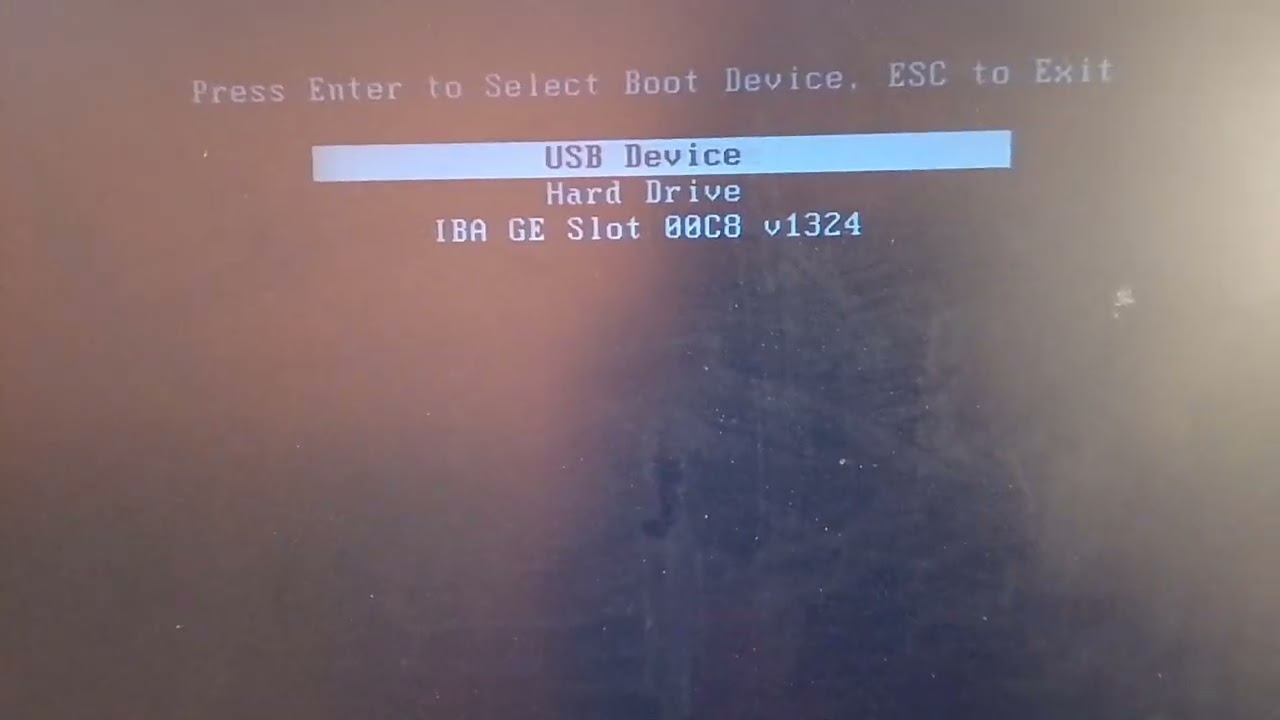
Step 1: Boot from USB

1. Insert USB drive.
2. Restart computer.
3. Enter BIOS/UEFI settings (usually F2, F12, or Del).
4. Set USB drive as first boot device.
5. Save changes and exit.


Step 2: Windows Setup

1. Computer will boot from USB.
2. Windows Setup will start.
3. Select language, time, and keyboard.
4. Click "Install Now".
5. Enter product key (if prompted).


Step 3: Choose Installation Type

1. Select "Custom: Install Windows only".
2. Choose drive to install Windows (usually C:).


Step 4: Partition and Format

1. Delete existing partitions (if necessary).
2. Create new partition.
3. Format partition.


Step 5: Install Windows

1. Windows will install.
2. Follow on-screen instructions.


Step 6: Finalize Installation

1. Set up user account.
2. Configure network settings.
3. Install drivers.


Troubleshooting Tips:

1. Ensure USB drive is bootable.
2. Check BIOS/UEFI settings.
3. Verify Windows ISO file integrity.


Additional Resources:

1. Microsoft Support: Install Windows from USB
2. Rufus: Create bootable USB
3. Windows Installation Media: Create installation media


Would you like more information on Windows installation or troubleshooting?

Комментарии

Информация по комментариям в разработке

Похожие видео

  • О нас
  • Контакты
  • Отказ от ответственности - Disclaimer
  • Условия использования сайта - TOS
  • Политика конфиденциальности

video2dn Copyright © 2023 - 2025

Контакты для правообладателей [email protected]