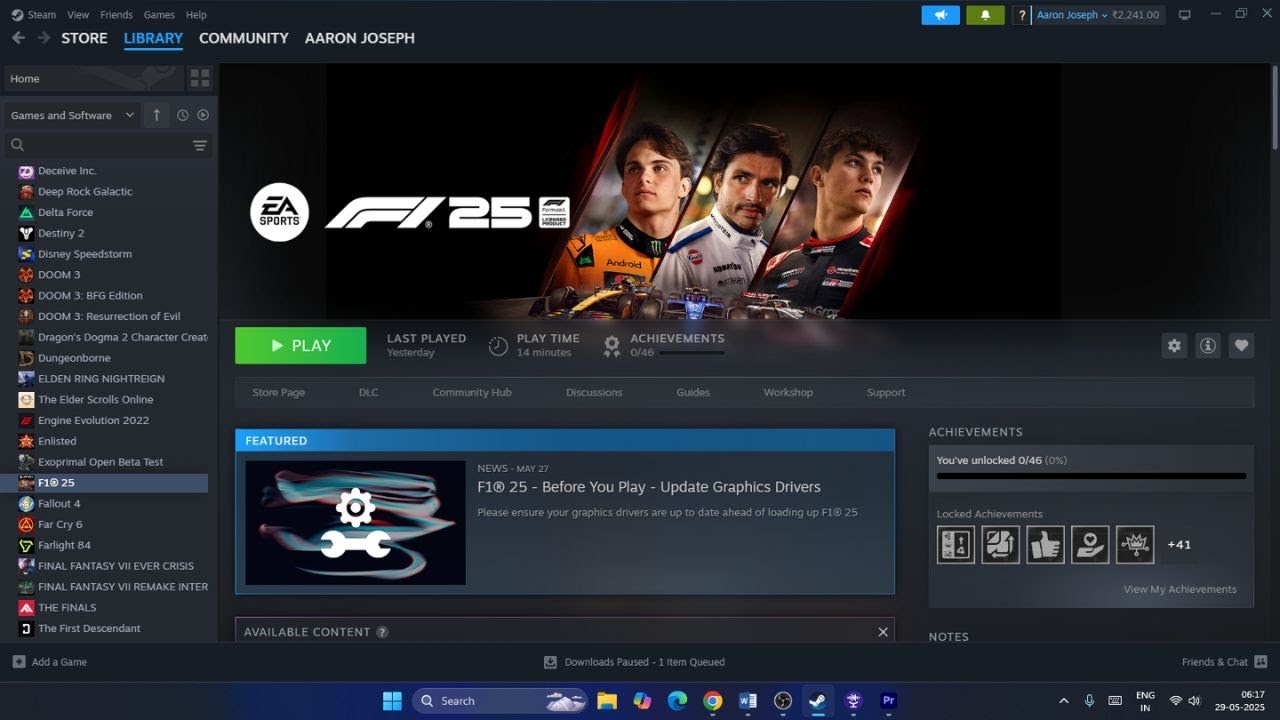
Are you facing any issue with F1 25 won't launch or not launching while playing on Windows 11 PC ? In this video, I will show you step by step on " How to Fix F1 25 Not Launching/Won't Launch On PC " .
Steps in this Video :
Step 1) Repair/Verify the game files.
Step 2) Delete Hardware Settings Folder, if that does not work rename the save game files (You will lose all the game progress)
Step 3) Disable Daemon tools in device manager, uninstall daemon, you can reinstall in future
Step 4) Perform a clean installation of graphics driver.
https://www.nvidia.com/Download/index...
https://www.amd.com/en/support
Step 5) Laptop users with dual graphics card run the game on dedicated graphics card.
Step 6) Roll back graphics card driver (576.28)
Step 7) Wheels & Pedals users: Plug in the wheel at the start up screen, disconnect the USB cable from the pedal and then connect the pedal set directly to the wheelbase with the DIN cable, also make sure that another USB gaming device is not connected to the PC in addition of your wheel base (Like USB Handbrake, USB Shifter, USB Gamepad Controller etc.) Update Wheel & Pedals Drivers, restart the PC https://support.thrustmaster.com/en, if you have Pedals with an RJ12 port connect the pedals using RJ Cord to the wheelbase. Do not use the USB.
Step 8) Disconnect any USB stick/Dongle Connected to the PC, disconnect Additional joystick, controllers, disconnect multiple monitors, disconnect all the additional USB adapter connected to PC, disable EA/Steam Overlay, close all the overlay apps (Discord, Nvidia App, Nvidia shadow play overlay, AMD overlay), do not overclock, set it default, close all the overclocking application (MSI Afterburner, rivatuner etc.), , Turn off Razer Synapse (razor lighting effects) and MSI Dragon Center, corsair software, end nahimic services & lightingservice.exe in task manager, remove the undervolt,
Step 9) Allow the game exe file to antivirus program (Avast, Norton, McAfee, bit defender, windhawk etc.)/Windows Security
Step 10) Run the game as an administrator from the game installation folder, uncheck compatibility mode from the game exe file, disable Full-screen Optimizations, Uncheck Administrator in EA App exe, if already unchecked then try launching the EA app as an administrator
Step 11) Close EA App and then repair EA App
Step 12) Clear EA App cache- Run EA App Recovery as administrator
Step 13) Repair/Uninstall & Reinstall EA AntiCheat
Step 14) Install Latest Version G Hub, Restart G Hub and the game.
Step 15) Install Visual C++ Files https://docs.microsoft.com/en-US/cpp/...
Step 16) Update your Windows.
Step 17) Increase the Virtual Memory:
View Advanced system settings
Initial Size: 1.5 x Total Ram
Maximum Size: 3 X Total Ram
Step 18) Update System BIOS
Step 19) Uninstall the game, delete the game folder, restart our pc and reinstall it back
Tags:
How to Fix F1 25 Not Launching
How to Fix F1 25 Won't Launch

Информация по комментариям в разработке