Logo video2dn
  • Сохранить видео с ютуба
  • Категории
    • Музыка
    • Кино и Анимация
    • Автомобили
    • Животные
    • Спорт
    • Путешествия
    • Игры
    • Люди и Блоги
    • Юмор
    • Развлечения
    • Новости и Политика
    • Howto и Стиль
    • Diy своими руками
    • Образование
    • Наука и Технологии
    • Некоммерческие Организации
  • О сайте

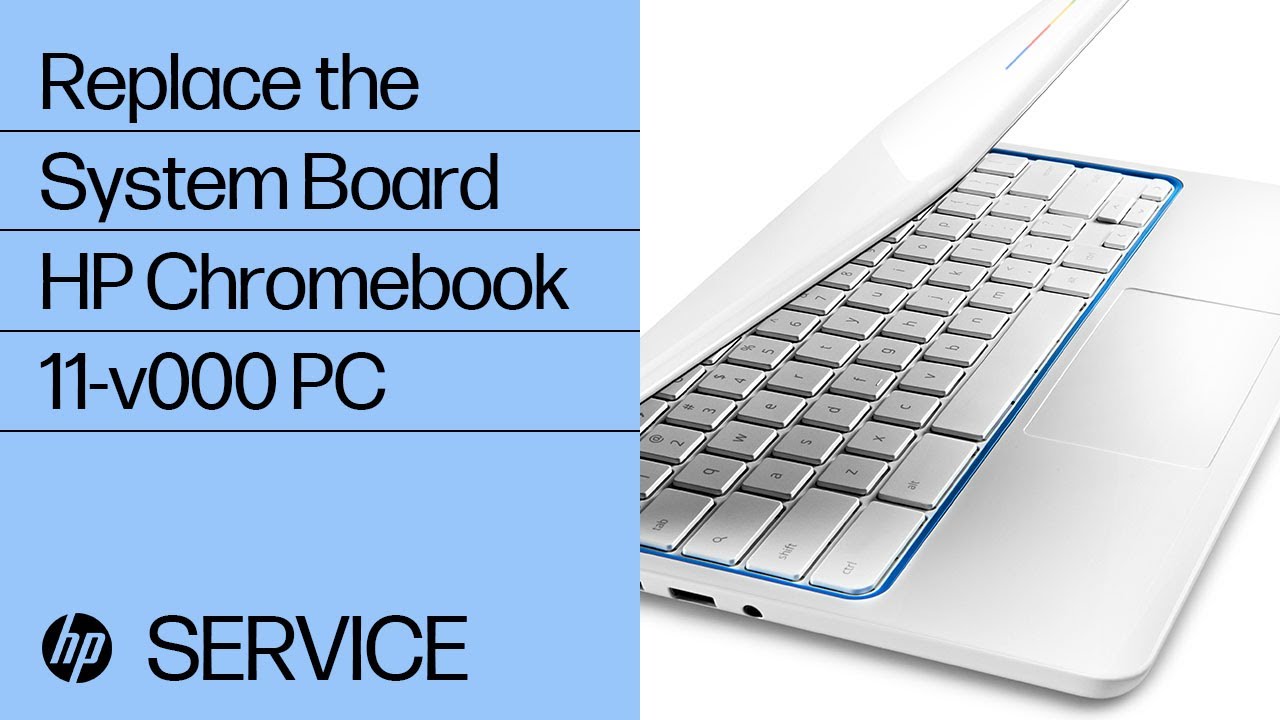
Скачать или смотреть Replace the System Board| HP Chromebook 11-v000 PC | HP

  • HP Support
  • 2020-04-24
  • 492
Replace the System Board| HP Chromebook 11-v000 PC | HP
HPHewlett PackardCompaqtutorialhow toelectronicscomputerPCdiysupporthelplearnnotebooklaptopSystem Boardreplace System Boardremove System Boardupgrade System BoardmotherboardHP Chromebook 11-v000 PCyt:cc=on
  • ok logo

Скачать Replace the System Board| HP Chromebook 11-v000 PC | HP бесплатно в качестве 4к (2к / 1080p)

У нас вы можете скачать бесплатно Replace the System Board| HP Chromebook 11-v000 PC | HP или посмотреть видео с ютуба в максимальном доступном качестве.

Для скачивания выберите вариант из формы ниже:

  • Информация по загрузке:

Cкачать музыку Replace the System Board| HP Chromebook 11-v000 PC | HP бесплатно в формате MP3:

Если иконки загрузки не отобразились, ПОЖАЛУЙСТА, НАЖМИТЕ ЗДЕСЬ или обновите страницу
Если у вас возникли трудности с загрузкой, пожалуйста, свяжитесь с нами по контактам, указанным в нижней части страницы.
Спасибо за использование сервиса video2dn.com

Описание к видео Replace the System Board| HP Chromebook 11-v000 PC | HP

Learn how to remove and replace the system board on the HP Chromebook 11-v000 PC.

Chapters:
00:00 Introduction
00:18 Removal of components before replacement
01:38 Remove the system board
02:13 Replacing the system board

More support options for your HP device are available at http://hp.com/support.

Follow these steps to remove and replace the system board on the HP Chromebook 11-v000 PC:
Before you begin: Remove the top cover and wireless module.
Removal:
IMPORTANT: Make careful note of the routing of all cables that connect to the system board for later replacement.
Using minimal force, lift the locking bar up on the sensor board ZIF connector and disconnect the sensor board ribbon cable from the system board.
Peel back the retention tape, lift the locking bar up on the display panel cable ZIF connector and disconnect the display panel cable from the system board.
Peel back the retention tape, lift the locking bar up on the webcam cable ZIF connector and disconnect the webcam cable from the system board.
Disconnect the power connector cable from its connector on the system board.
Disconnect the speaker cable from its connector on the system board.
Using minimal force, lift the locking bar up on the I/O board ZIF connector and disconnect the I/O board ribbon cable from the system board.
Remove the four, 3.5 millimeter P1 Phillips-head screws that secure the system board to the base enclosure.
Remove the 3.5 millimeter P1 Phillips broad-head screw that secures the system board to the base enclosure.
Carefully lift the left edge of the system board off of the alignment pins on the base enclosure and remove the external connectors on the right side of the system board from the cut outs in the base enclosure.
Remove the system board.
Replacement:
Note: Before installing a new system board, remove the following from the old system board and install on the new system board: heatsink.
Toe the external connectors on the right side of the system board into the cut outs in the base enclosure and lower the system board onto the alignment pins.
Caution! To avoid damage, ensure that all cables are free from being pinched between the system board and base enclosure.
Replace the 3.5 millimeter P1 Phillips broad-head screw that secures the system board to base enclosure.
Replace the four, 3.5 millimeter P1 Phillips-head screws that secure the system board to base enclosure.
Insert the I/O board ribbon cable into the I/O board ZIF connector on the system board and press the locking bar down to lock the cable into place.
Connect the speaker cable into its connector on the system board.
Connect the power connector cable into its connector on the system board.
Insert the webcam cable into the webcam cable ZIF connector on the system board and press the locking bar down to lock the cable into place, and replace the retention tape
Insert the display panel cable into the display panel cable ZIF connector on the system board and press the locking bar down to lock the cable into place, and replace the retention tape.
Insert the sensor board ribbon cable into the sensor board ZIF connector on the system board and press the locking bar down to lock the cable into place.

Caution: Improperly installing or replacing parts could damage your HP device or void your warranty. Before replacing any parts, check your warranty.

Continue the Conversation:
http://hp.care/SupportForums
http://hp.care/FacebookSupport
http://hp.care/TwitterSupport

#HPSupport #HPComputerService #HPchromebook #HP

SUBSCRIBE:    / hpsupport  
SHOP NOW: https://www.hp.com/online-store
HP PARTS STORE: https://parts.hp.com

About HP:
HP Inc. creates technology that makes life better for everyone everywhere – every person, every organization, and every community around the globe. Through our portfolio of printers, PCs, mobile devices, solutions, and services, we engineer experiences that amaze.

Connect with HP:
Visit HP WEBSITE: http://www.hp.com
Like HP on FACEBOOK:   / hp  
Follow HP on TWITTER:   / hp  
Follow HP on INSTAGRAM:   / hp  
Follow HP on LINKEDIN:   / hp  

This video was produced by HP.

Комментарии

Информация по комментариям в разработке

Похожие видео

  • О нас
  • Контакты
  • Отказ от ответственности - Disclaimer
  • Условия использования сайта - TOS
  • Политика конфиденциальности

video2dn Copyright © 2023 - 2025

Контакты для правообладателей [email protected]