Get Sku Grid: http://skugrid.com/web/?ref=FreeGift
Need eBay Training?: http://dropshipevolution.com
In this video, we're going to show how you can use Tags to categorize and filter your items within your Sku Grid account.
Sku Grid now has the ability for you to add Tags to items. These tags can later be sorted on the grid or filtered to make it easy for you to locate items that might require special attention.
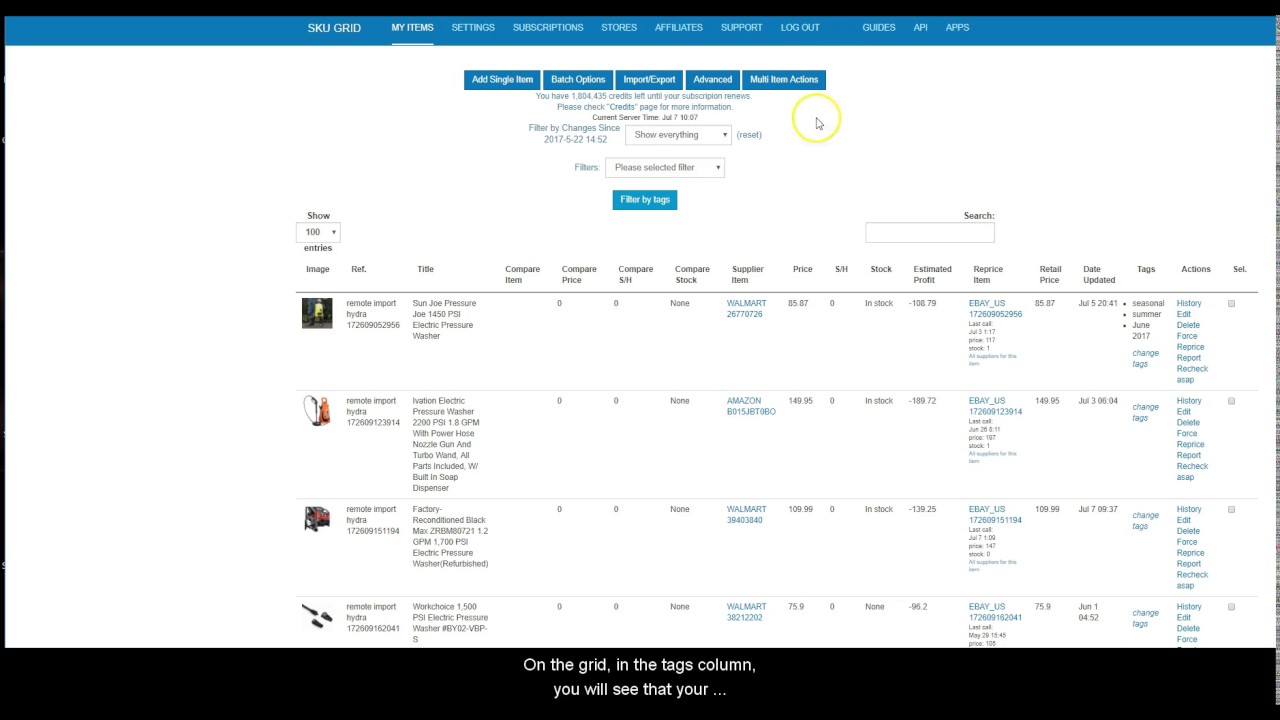
Once you are logged into your skugrid account, the first thing you'll need to do is make sure that you have the Tags column enabled in your grid display settings.
Go to Settings.
Click the link that says Show the Following Columns in Table.
Be sure that the Tags option is checked.
Click Save Settings.
Then go back to your My Items Tab.
Let's say you have an item that you want to mark as "Seasonal". You can add a tag to it that can later be filtered out.
Locate the item in the grid and in the Tags column, click "Change Tags".
Enter the tag or tags that you would like to label this item as. You can only enter one tag at a time, but you can have multiple tags per item.
Let's say that I want to label this item as Seasonal because it's a seasonal item that I might want to get rid of next season and I also want to label the item as Summer because it's a summer item and let's say I'd want to label it June 2017 as the month and year that I listed the item.
I'd enter Seasonal then click Add Tag.
Next enter Summer, then click Add Tag.
Enter June 2017, then click Add Tag.
When finished, click the X in the top right corner to close out of the Change Tags popup.
On the grid, in the tags column, you will see that your tags have been saved.
I'll now enter the tags Summer and June 2017 (separately) on 2 different items.
Now I will demonstrate how to filter through tagged items.
Under your two filter drop downs, there is a blue button that says Filter by tags. Click the Filter by tags button.
It will display a list of all tags that you have used in your skugrid account. Simply put a check mark next to the tags that you wish to display. You can select one or multiple options here. For this example, I will select, Seasonal and June 2017.
Then click OK.
The grid will now be displaying items that had the selected tags applied. So looking at this, I'd be able to at a glance see items that I had listed in the month of June that were also labeled as Seasonal.
From here, you'd be able to use Multi Item Actions to perform certain editing and repricing functions on these select items or this can be useful in deleting seasonal items at once.
Finally, if you wish to remove a tag, you can just click on Change Tags.
Then click the Delete button next to the tag or tags that you would like to no longer have applied to this item.
Remember: What was shown in this tutorial was just one example of how tags can be used. You can enter any values that you want or choose to not use them at all. But having this ability to categorize your items and group them, makes Sku Grid that much more flexible.
Thank you for watching. We'll see you in the next video.
• Sku Grid: New Features - Using Tags to Cat...
Incoming Search Terms: Sku Grid, Skugrid, Sku Grid Training, Skugrid Training, Sku Grid Tutorials, Skugrid Tutorials, Sku Grid Tags, Skugrid Tags, Sku Grid Filters, Skugrid Filters, Sku Grid New Features, Skugrid New Features, Customize Sku Grid, Customize Skugrid, Sku Grid Seasonal Items, Skugrid Seasonal Items, Sku Grid Support, Skugrid Support, Sku Grid Demo, Skugrid Demo, eBay Inventory Management, Amazon Inventory Management, eBay Dropshipping, Amazon Dropshipping

Информация по комментариям в разработке