How to Draw a Line in Google Docs
Free Google Docs Templates: https://bit.ly/draw_lines_gdocs (Really Free)
0:00 How to Draw a Line in Google Docs
0:34 Entering Drawing Mode And Uploading Image
1:10 Drawing a Line And Customizing it
2:30 Other Types of Lines
3:44 Other Types of Lines #2
DRAWING LINES IN GOOGLE DOCS
We start by clicking on the “Insert” on the toolbar, and then in the menu go down to the 3rd item “Drawing” and click “New” on the right. That will open a drawing canvas, which is really easy to work with. Usually at first you create text boxes or upload an image to draw over it, so I'm quickly getting one out from my computer.
DRAWING A LINE AND CUSTOMIZING IT
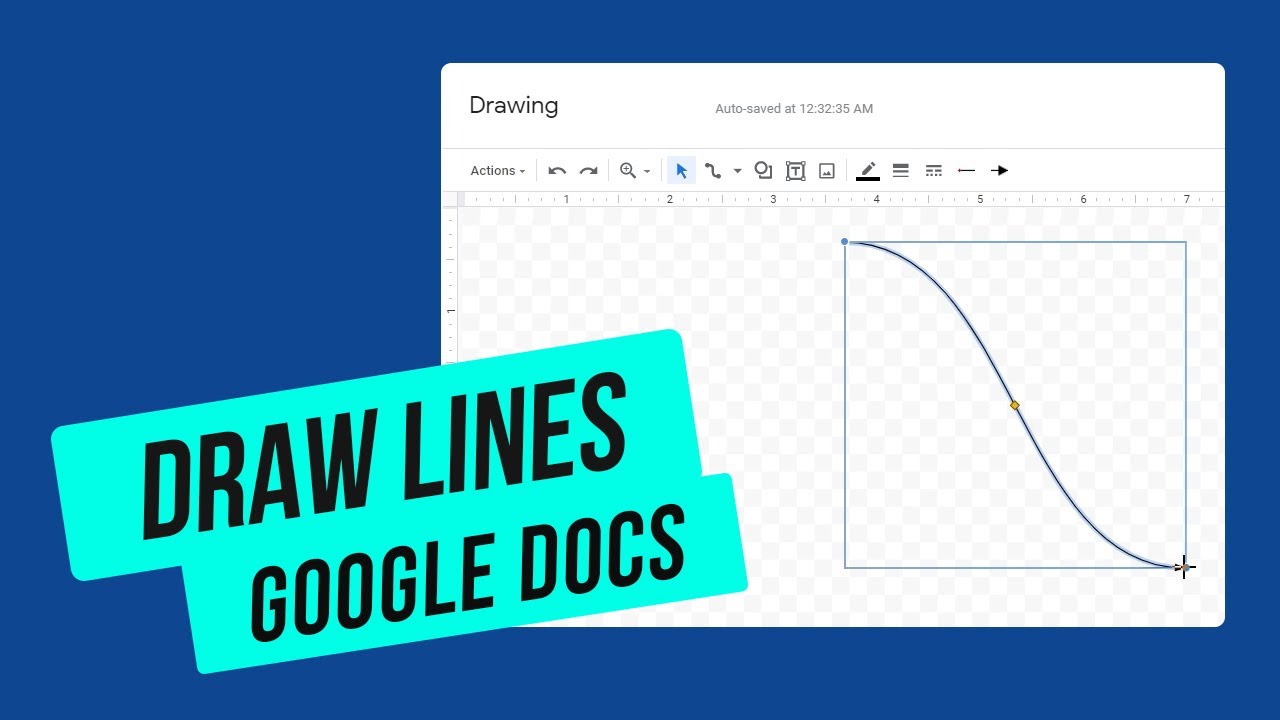
Now it’s time to draw lines, and for that we need a specific icon on the toolbar with a line. Once you press on it, you can go on and draw a line - put the mouse pointer where you want the line to start, press-hold and move it to the end point, then release it and you have the line. If you want to move it somewhere else press "Esc" to exit the drawing mode, then press-hold on the line and drag it where you want it to be. If you want to resize it and change the start and end point, pull from either end of the line where you see circles, and you’ll be able to rearrange line end and start points. From this point we customize the looks of the line, and on the toolbar there are the tools for that. The first is the line color, where you pick either some standard one, or do a custom with this plus icon, I will pick a red one. Next on the menu we have line weight, where you basically select how thick you want your line to be, on the video I do 4 pixels. Then it's a line dash if you’d like, and the buttons to create arrow pointers on the start or the end of the line.
DRAWING OTHER TYPES OF LINES
Concerning other options that we have. Click on the little down arrow next to the line symbol and you’ll see other types of lines you can draw, and we'll quickly overview each, resuming from the arrow. So when the arrow is active you draw a line as usual, but its end point will have an arrowhead on it, that you can customize if you click on the icon. It can be round, square type and others, and you can also add an arrow to the line’s start point. Back to the line selection, and the next one is “Elbow connector”, which looks like what it sounds, the line that is bent in the middle, and when you draw it it adapts to where you plan to place the end point. And you can rearrange its ends by exiting the creation mode with "Esc" and then pull either end of the line and place it how you like. Additionally, you can move the bent line in the middle - for that select the figure, and then pull the yellow triangle in the middle right or left.
DRAWING OTHER TYPES OF LINES #2
Then on the menu we have a common curve line, which main difference is that you can change its curve angle by pulling the light triangle in the middle. The next on the menu we have a curve, which is similar, but allows you to make one unbroken figure with multiple curves at once. For that click on the start point with no need to hold the mouse, and then choose the end point of the current line, but it doesn’t end there, your next move will curve this line line this, and then click to create a one more middle point. With the next click you curve it again and you can keep going. To quit drawing the curve press on the last created point. By the way you cannot rearrange the points of the shape after drawing, only create a new one. Then on the menu I’m skipping the polyline since this is kind of a tool to create shapes, and the last is the “Scribble”, which is what it sounds like, meaning drawing any line you want by hand, which is frequently used for signatures. And then you customize it like the normal line. When you’re done hit “Save and Close” at the top right corner and you have it in your document.
Free Google Docs Templates: https://bit.ly/draw_lines_gdocs (Really Free)
Template Search Extension! https://bit.ly/TheGooDocs_Extension
Facebook: https://bit.ly/TheGooDocs_FB
Dribbble: https://bit.ly/TheGooDocs_Dribbble
Behance: https://bit.ly/TheGooDocs_Behance
Pinterest: https://bit.ly/TheGooDocs_Pinterest
Subscribe! / @thegoodocs
#howtodrawalineingoogledocs #howtoinsertaverticallineingoogledocs #howtoinsertalineingoogledocs #howtomakealineingoogledocs #howtoaddanarrowingoogledocs #howtoaddarrowingoogledocs #howtomakeanarrowongoogledocs #scribblegoogledocs #elbowconnectorgoogledocs #curvedconnectorgoogledocs #curvelinegoogledocs #thegoodocs #googledocsfreetemplates #templatesforgoogledocs #linesgoogledocs #googledocstutorial #googledocs
Get hundreds more guides and a lot of Free Google Docs templates on TheGooDocs.com
Like to help share our videos to more people and subscribe to see more guides!

Информация по комментариям в разработке