Logo video2dn
  • Сохранить видео с ютуба
  • Категории
    • Музыка
    • Кино и Анимация
    • Автомобили
    • Животные
    • Спорт
    • Путешествия
    • Игры
    • Люди и Блоги
    • Юмор
    • Развлечения
    • Новости и Политика
    • Howto и Стиль
    • Diy своими руками
    • Образование
    • Наука и Технологии
    • Некоммерческие Организации
  • О сайте

Скачать или смотреть VSCode and ICICI Breeze API Setup

  • Pankaj B.
  • 2023-11-27
  • 209
VSCode and ICICI Breeze API Setup
  • ok logo

Скачать VSCode and ICICI Breeze API Setup бесплатно в качестве 4к (2к / 1080p)

У нас вы можете скачать бесплатно VSCode and ICICI Breeze API Setup или посмотреть видео с ютуба в максимальном доступном качестве.

Для скачивания выберите вариант из формы ниже:

  • Информация по загрузке:

Cкачать музыку VSCode and ICICI Breeze API Setup бесплатно в формате MP3:

Если иконки загрузки не отобразились, ПОЖАЛУЙСТА, НАЖМИТЕ ЗДЕСЬ или обновите страницу
Если у вас возникли трудности с загрузкой, пожалуйста, свяжитесь с нами по контактам, указанным в нижней части страницы.
Спасибо за использование сервиса video2dn.com

Описание к видео VSCode and ICICI Breeze API Setup

In 10 Steps your VSCode ready for ICICIBreezeAPI
ICICI Direct Breeze Setup in VSCode,
Connect to Interent because all work done on internet.

We will setup our "ICICI Breeze API" Virtual Environment in VSCode.

If you are stuck anywhere in setup that means you missed anything.

Lets Start from Begining,


1. VSCode
code.visualstudio.com/download

2. Python
(Download latest version from Microsoft App Store, it will solve 90% problem of your setup)
microsoft.com/store/productId/9NRWMJP3717K?ocid=pdpshare

3. After install these software, Restart your PC, no need to setup anything just do it as in this video.

4. Open VSCode and start your journey.

5. Install Python Extension in VSCode. its Python(IntelliSence(Pylance), Microsoft),

6. VSCode internal PowerShell -
a) We will check if python is working fine or not.
use "PYTHON" cmd and hit Enter.
it will show the version or error. Error there? Then chances you didnt install it from MS Store.
you will see such prompt "angle bracket" its mean you are on python environment just hit Ctrl+Z and enter you will exit from Python interpreter.

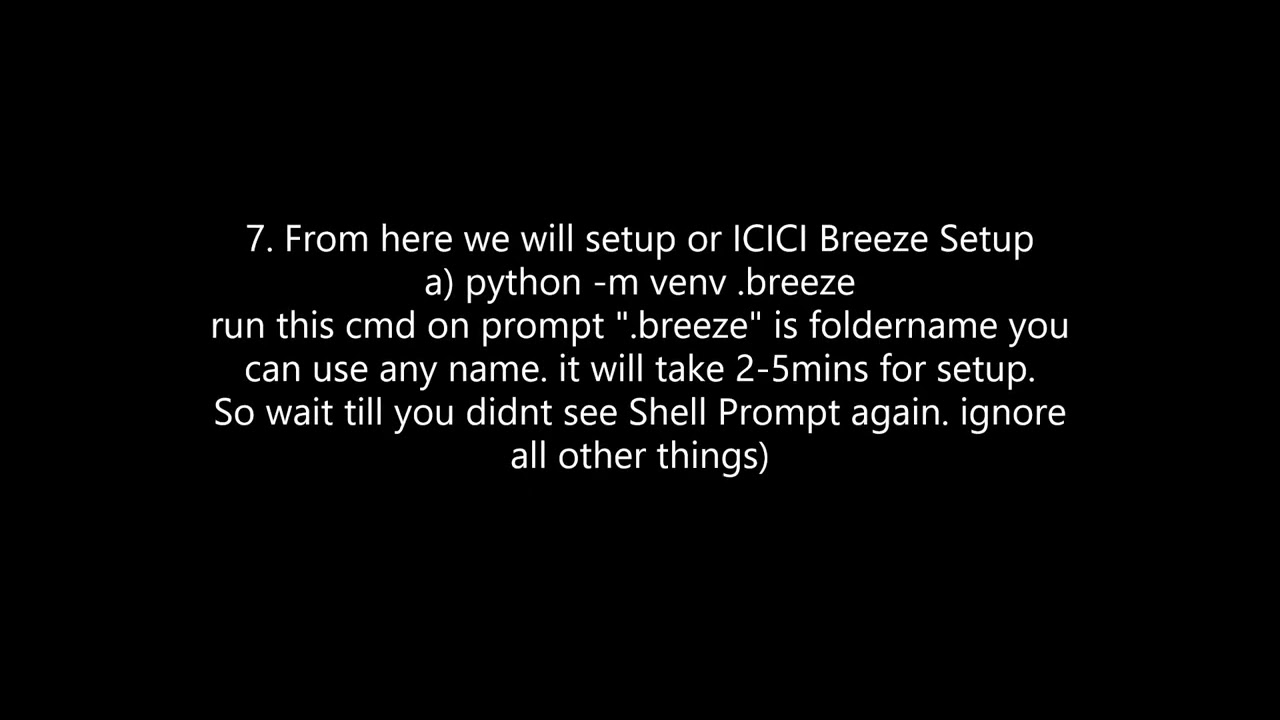
7. From here we will setup or ICICI Breeze Setup
a) python -m venv .breeze
run this cmd on prompt ".breeze" is our folder you can use any name. it will take 2-5mins for setup.
So wait till you didnt see Shell Prompt again. ignore all other things)

8. Setup our Workspace in VSCode -
a) Open folder ".breeze"
Go to File- Open Folder (select your folder from Explorer (default place is "C:\Users\Name")).
After open your folder you can see on the right side of VSCode-Explorer Panel 3 folders and 1 file,
nothing there ?, there will be two reasons Step.7-a) not worked or you opened wrong folder.
you didnt get the folder ?, simply search it on Windows Explorer.
b) Create our coding file in this folder, in VSCODE Explorer, right click there and create newfile with ".py" extention (PY = you are using python). Double Click and Open the File.
c) Its Very Important Step carefully choose your interpreter -
i) click Ctrl+Shift+P
ii) type - "Python:Select Interpreter"
select - Python (".breeze":venv) .\Scripts\python.exe
iii)Your Breeze is not in list
go to "Enter interpreter path.."
find path of your "Breeze" folder from Windows Explorer.

All done, now time to check we are at right path, check the VSCODE RightSide Footer
{} Python 3.11.6 (".breeze":venv)
or not, again go to Step 8.c)

9. Test our Breeze, Activate and Deactivate our Virtual Enviroment
a) On VSCode internal PowerShell Prompt use this command
i) Scripts\Activate.ps1
you will see (.breeze) just before the prompt like in this video. (color does not matter)
When you use this command 1st time, you get error, How to get solution simple check 9.a)ii)
ii) Error, use this command on Windows PowerShell.
Go to Start, Windows PowerShell, right click on it and choose "RUN AS ADMINISTRATOR"
set-executionpolicy remotesigned
iii) Try Step9.a)i) again. it will work.

10. Install breeze-connect (connect to internet)
a) go to your VSCode prompt and use this cmd
pip install --upgrade breeze-connect
It will download all requiresd LIBs, FILEs, that required to run our BreezeAPI. If you get error on "PIP" then you have to install, search it on google.

11. Time to Check if we are ready to Start Breeze
a) Step 9.a)i)
b) 1 Line Code "print("I achieved 100%")
c) Select the line
i) right click choose
ii) Run Python
iii) Run Selection/Line in Python Terminal

Now all work done by VSCode, wait for result.

Welcome to Coding Env. :))

Any Ques ask it, its free.

Комментарии

Информация по комментариям в разработке

Похожие видео

  • О нас
  • Контакты
  • Отказ от ответственности - Disclaimer
  • Условия использования сайта - TOS
  • Политика конфиденциальности

video2dn Copyright © 2023 - 2025

Контакты для правообладателей [email protected]