Elevating Document Design: Adding a 'SmartArt Pyramid' Diagram in Microsoft 365 Word (Windows 11)
In the realm of document creation, visual elements serve as powerful tools for enhancing comprehension and engagement. Microsoft 365 offers a range of features to facilitate this, with the 'SmartArt Pyramid' diagram being particularly useful within Office Word. This dynamic tool enables users to represent hierarchical structures, prioritize information, and visualize data in a pyramid format. In this guide, we'll explore the process of adding and customizing a 'SmartArt Pyramid' diagram in Microsoft 365 Word on Windows 11, empowering you to create visually appealing documents with ease.
*Understanding SmartArt Pyramid:*
Before diving into the implementation, it's essential to understand the significance of SmartArt Pyramid. SmartArt Pyramid is a graphical representation that organizes information in a hierarchical structure, with each level representing different levels of importance, quantity, or priority. Whether you're illustrating Maslow's Hierarchy of Needs, outlining a project's goals, or showcasing a product's features, SmartArt Pyramid offers a visually compelling solution that enhances communication and comprehension.
*Adding SmartArt Pyramid in Microsoft 365 Word (Windows 11):*
1. *Launch Microsoft 365 Word:* Begin by opening Microsoft Word on your Windows 11 device. Ensure you're logged into your Microsoft account for seamless access to all features.
2. *Navigate to the "Insert" Tab:* Once Word is open, locate the "Insert" tab situated in the ribbon at the top of the interface. Click on it to reveal a range of insertion options.
3. *Select "SmartArt":* Within the "Insert" tab, find the "Illustrations" group. Here, you'll see the "SmartArt" option. Click on it to open the SmartArt gallery.
4. *Choose SmartArt Pyramid:* In the SmartArt gallery, navigate through the categories on the left pane or use the search bar to locate the "Pyramid" category. Within this category, you'll find various Pyramid diagrams, including basic pyramids, inverted pyramids, and more. Select the desired SmartArt Pyramid diagram by clicking on it.
5. *Customize as Desired:* After selecting the SmartArt Pyramid diagram, click "OK" to insert it into your Word document. You can now customize the pyramid by adding text, adjusting levels, modifying colors, and arranging layout styles to suit your specific requirements.
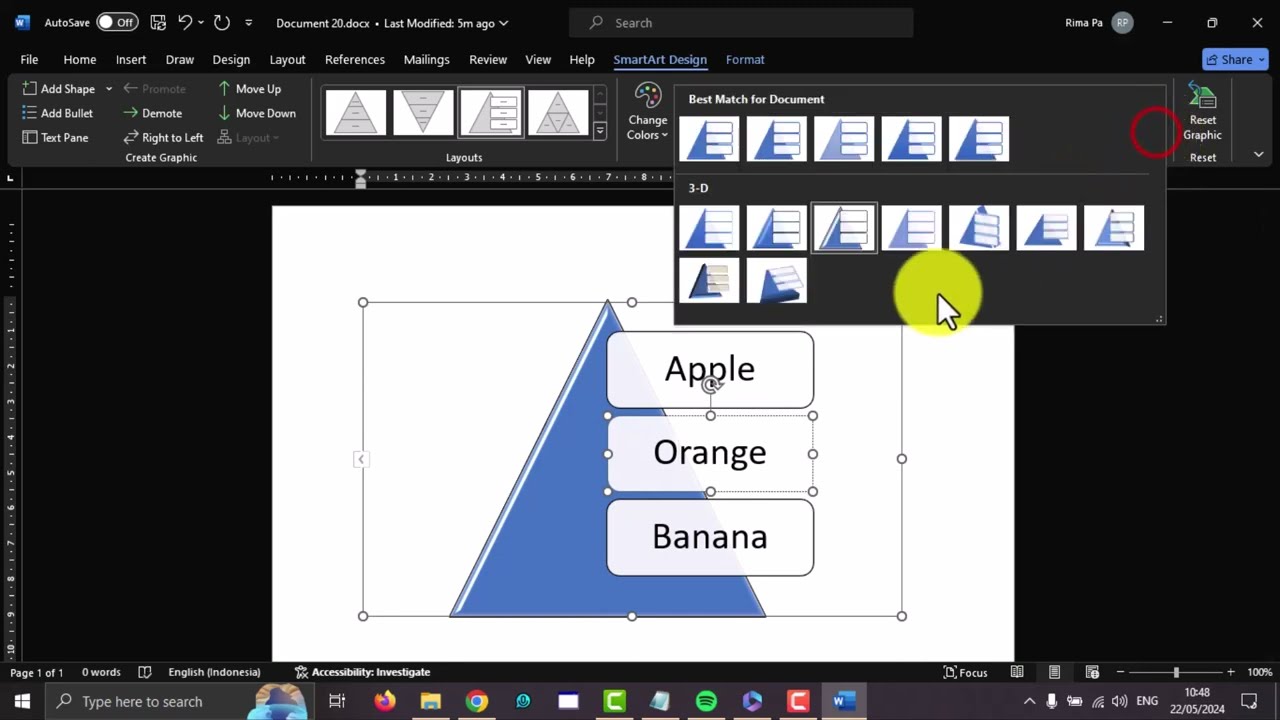
6. *Input Content:* Double-click on each level within the SmartArt Pyramid to input your content. Populate the pyramid with relevant information, labels, or data points to accurately represent your hierarchy or prioritization.
7. *Fine-tune Visuals:* Utilize the SmartArt Tools tab that appears when the SmartArt Pyramid diagram is selected to further refine the visual aspects. Experiment with different styles, effects, and formatting options to enhance the clarity and visual appeal of your pyramid.
8. *Save Your Document:* Once you've customized the SmartArt Pyramid diagram to your satisfaction, remember to save your document to preserve your work.
*Conclusion:*
In conclusion, adding a 'SmartArt Pyramid' diagram in Microsoft 365 Word on Windows 11 enables you to visually organize information, prioritize content, and communicate hierarchy effectively. By following the step-by-step guide outlined in this article, you can leverage the power of SmartArt Pyramid to enhance comprehension, streamline communication, and elevate the impact of your documents. Embrace the versatility of SmartArt Pyramid to unlock new possibilities in document creation within Microsoft 365 Word.
*Tags:*
Microsoft 365, Word, Windows 11, SmartArt, SmartArt Pyramid, Visual Communication, Document Creation, Office Productivity, Hierarchy Representation.

Информация по комментариям в разработке