Logo video2dn
  • Сохранить видео с ютуба
  • Категории
    • Музыка
    • Кино и Анимация
    • Автомобили
    • Животные
    • Спорт
    • Путешествия
    • Игры
    • Люди и Блоги
    • Юмор
    • Развлечения
    • Новости и Политика
    • Howto и Стиль
    • Diy своими руками
    • Образование
    • Наука и Технологии
    • Некоммерческие Организации
  • О сайте

Скачать или смотреть Snap Layout Windows 11

  • SoftTech Tutorials
  • 2021-09-14
  • 372
Snap Layout Windows 11
snap layout Windows 11how to use snap assist windows 11snap layoutWindows 11softtech tutorialswindows 11 snap layoutsWindows 11 featuressnap assist windows 11snaplayout
  • ok logo

Скачать Snap Layout Windows 11 бесплатно в качестве 4к (2к / 1080p)

У нас вы можете скачать бесплатно Snap Layout Windows 11 или посмотреть видео с ютуба в максимальном доступном качестве.

Для скачивания выберите вариант из формы ниже:

  • Информация по загрузке:

Cкачать музыку Snap Layout Windows 11 бесплатно в формате MP3:

Если иконки загрузки не отобразились, ПОЖАЛУЙСТА, НАЖМИТЕ ЗДЕСЬ или обновите страницу
Если у вас возникли трудности с загрузкой, пожалуйста, свяжитесь с нами по контактам, указанным в нижней части страницы.
Спасибо за использование сервиса video2dn.com

Описание к видео Snap Layout Windows 11

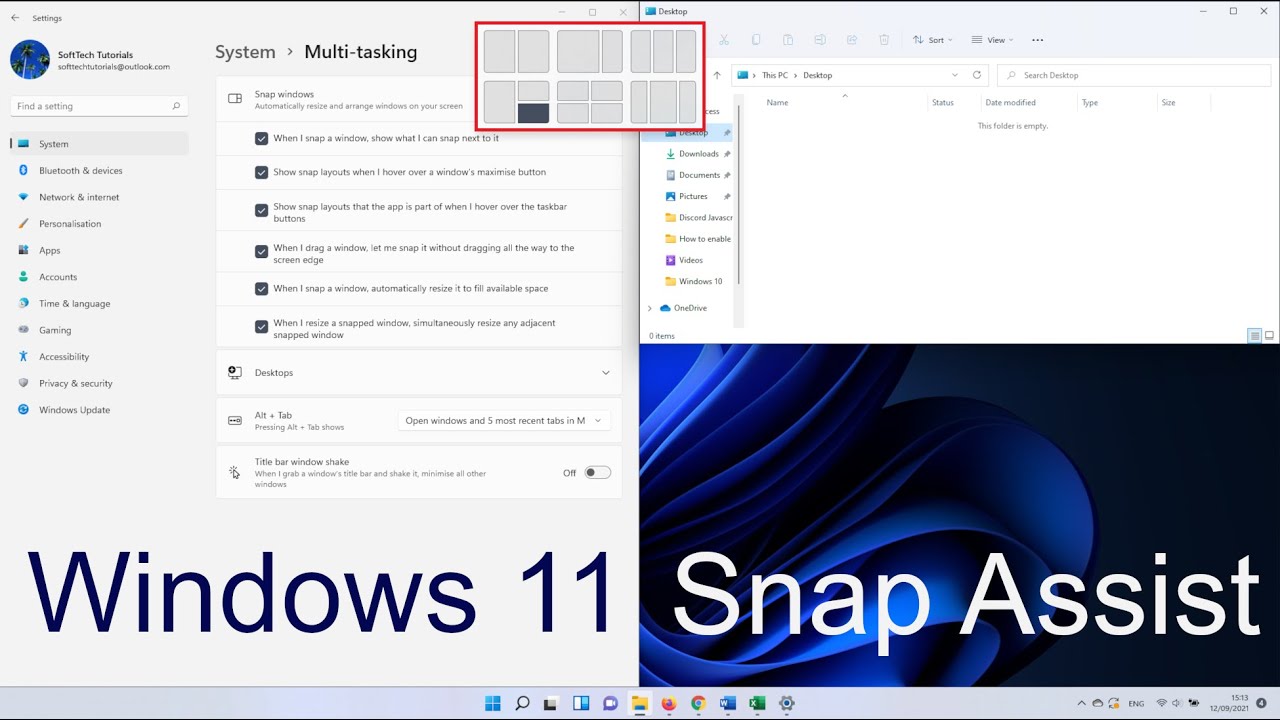
Windows 11 Snap Assist

One of the improvements in Windows 11 has to be the updated snap assist feature. The snapping goes back to Windows 7, but this time Microsoft put in the extra work and made the feature more user-friendly to deal with. Microsoft also added a few additional options in the snap layout.

0:00 Windows 11 Snap layout intro
0:18 How to Use Snap Assist Windows 11
1:32 Snap Settings

https://softtechtutorials.com/windows...

How to Use Windows 11 Snap layout

To use the Windows 11 Snap Assist, you simply need to hover over the maximize button in for instance a file explorer window. As you can see, there are six options. Depending on the size of your screen, it is possible that your options are different than mine. New in Windows 11, is to have the snap assist divide your screen in three vertical sized sections.

For instance, you can split the screen in three by having each application use about 33% of the screen. You can also have one application use 50% while the other two each use 25%.

Keep in mind, that while most regular applications like File Explorer, Microsoft Office apps, and web browsers are able to work with the layout options in the snap assist. There are also some applications that won’t be able to handle the snap layout.

When you have applications grouped with the Windows 11 snap assist, you can hover over one of these apps on the taskbar. When you do this, you get two options. You can open the application itself, or you can open the group of applications that you made with the snap assist.

Manage Snap Settings

For the last bit in this tutorial, I’ll quickly show you how to manage the snap settings in Windows 11 or what to do if you can’t see the snap layout when you hover over the maximize button. To do this, click on the search icon and type in: snap settings.

This opens the Multi-tasking menu. Click on Snap windows to open the dropdown menu. The second option, “Show snap layouts when I hover over a Window’s maximise button” is what we use in this tutorial.

When you uncheck this, the snapping won’t work. This should be active by default but if the snapping isn’t working it might be that this setting isn’t active.

This concludes our Windows 11 snap assist tutorial. I'm inspired by creators as TechGumbo and Tech Insider.

#Windows11 #tutorial #HowTo

Комментарии

Информация по комментариям в разработке

Похожие видео

  • О нас
  • Контакты
  • Отказ от ответственности - Disclaimer
  • Условия использования сайта - TOS
  • Политика конфиденциальности

video2dn Copyright © 2023 - 2025

Контакты для правообладателей [email protected]