Logo video2dn
  • Сохранить видео с ютуба
  • Категории
    • Музыка
    • Кино и Анимация
    • Автомобили
    • Животные
    • Спорт
    • Путешествия
    • Игры
    • Люди и Блоги
    • Юмор
    • Развлечения
    • Новости и Политика
    • Howto и Стиль
    • Diy своими руками
    • Образование
    • Наука и Технологии
    • Некоммерческие Организации
  • О сайте

Скачать или смотреть Creating Your Own Variables

  • Computech Racing
  • 2026-01-30
  • 23
Creating Your Own Variables
  • ok logo

Скачать Creating Your Own Variables бесплатно в качестве 4к (2к / 1080p)

У нас вы можете скачать бесплатно Creating Your Own Variables или посмотреть видео с ютуба в максимальном доступном качестве.

Для скачивания выберите вариант из формы ниже:

  • Информация по загрузке:

Cкачать музыку Creating Your Own Variables бесплатно в формате MP3:

Если иконки загрузки не отобразились, ПОЖАЛУЙСТА, НАЖМИТЕ ЗДЕСЬ или обновите страницу
Если у вас возникли трудности с загрузкой, пожалуйста, свяжитесь с нами по контактам, указанным в нижней части страницы.
Спасибо за использование сервиса video2dn.com

Описание к видео Creating Your Own Variables

Creating your own DataMaxx variables is pretty easy. First we have to determine what data point we want to grab. You have the option of grabbing the value at a certain time, grabbing the time at which a certain channel hits a certain value or you can grab the min, max, average or standard deviation.

The first step is to determine what data point you would like to grab. For this example I want to grab the fuel pressure at the end of the run. Now we do recommend that you choose a time to grab this value where you know you won’t be whomping the throttle at the finish line. In our top dragster that runs 4.20’s to 4.40’s we typically grab the data at 3.8 seconds into the run. So in this scenario, I want to get the value of the fuel pressure at 3.8 seconds.

Next, in the RaceBase, click on Views and then in the Variable section, change the variable type to DataMaxx point. This should open up additional text fields.

Name is the first field and this will be the name of the DataMaxx variable, not the DataMaxx channel. For this example I can call the value Fuel psi. For Type, I leave that alone as a DataMaxx Point.

Dx Channel is important and has to be spelled properly for it to work. This is where we reference a DataMaxx channel name and it needs to be spelled the exact same as the DataMaxx channel. So if I go over to my DataMaxx software I can see that my fuel psi channel is just listed as Fuel with a capital F. So I type it in that exact same way into the Dx Channel field.
Dx Option allows you to choose between value, time, min, max, average and standard deviation. In this case I am trying to grab the value at a specific time so I will select Value for Dx Option.

DX Operator allows me to grab the value @ a certain time, or grab the time when a value gets above or below a certain range. Since I am trying to find the fuel psi @ 3.8 seconds into the run, I will leave it on the @ symbol.
Dx Time is the time at which I want to grab this point. If I was doing launch RPM or temperature it would be at -0.3 seconds into the run. But for this example I want to choose 3.8 seconds so I am getting down track data but not late enough that my data will be thrown off by me playing the finish line.
The Dx Range is the final option and this does not need to be set, it can be left blank. If you do set this range option, each time you import data, if it is outside of the range allotted compared to the previous pass it will notify you in an alert box while you are inputting in your run. Any values that were outside of their range will also highlight the field red to let you know there is a problem. If your range is alerting too often, you can go back to this variable and modify the range easily.

Now I can save the variable and if I go select it again, I can find the variable summary at the bottom and make sure that it makes sense. In this case it says “Get value of Fuel @ 3.8 w/ range of” and nothing else. That all sounds correct so next I need to add it to a category that my cars view will show. So if I go to my DataMaxx category I can now add the new Fuel psi variable to the category and it is ready to test. For instructions on how to test and import the DataMaxx Data you can watch the next video. However, for the sake of teaching how to create a DataMaxx variable we will do some more examples.

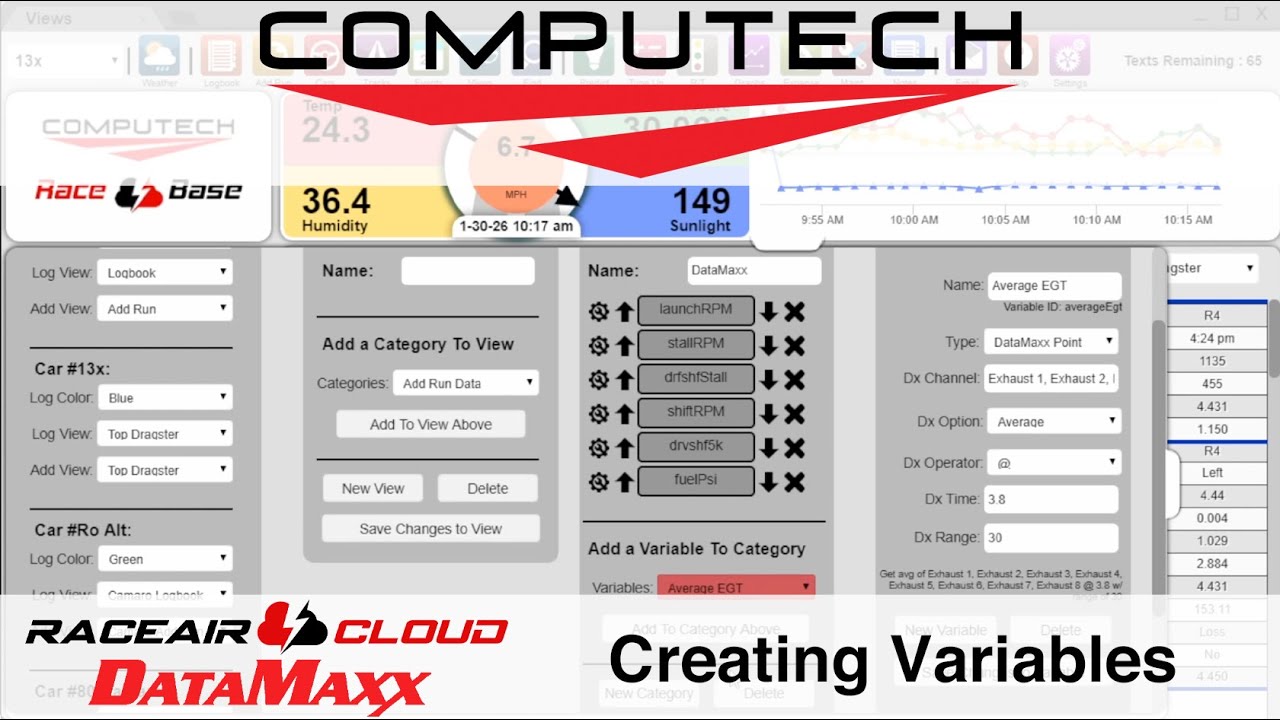
Next I would like grab the average value of all 8 of my EGTs during a pass. So the first step is go to Views inside RaceBase, then change the type to a DataMaxx point and more fields will appear. I will change the name to Average EGT and leave the DataMaxx Point alone.

Now for the Dx Channel we are trying to average all 8 of the channels. So we will list each channel name as it is spelled in the DataMaxx and use a comma to separate them. So I will type in Exhaust 1, comma space, Exhaust 2, comma space, Exhaust 3 and so on.

Then for Dx Option I will choose Average and then the @ symbol since I am trying to find the value AT a certain point in the run. Then for DxTime I will select 3.8 which is referring to the 3.8 seconds into the run that we want to grab the data and for Dx Range I am going to put in 30. This means if the average temperature is more than 30 degrees different than the run before then it will alert me.

Once I am done I can hit Save Changes to Variable and if I go select my Average EGT variable now, you will see a summary at the bottom that shows me what I am grabbing. Next we need to go to our DataMaxx category and add this new Average EGT variable to the category. At this point you can try testing your new variable and instructions for that are in the next video, how to import DataMaxx data.

Комментарии

Информация по комментариям в разработке

Похожие видео

  • Как на практике использовать Claude Cowork (пошаговая инструкция)
    Как на практике использовать Claude Cowork (пошаговая инструкция)
    1 месяц назад
  • Model Context Protocol (MCP) Integration with Adobe Experience Manager as a Cloud Service
    Model Context Protocol (MCP) Integration with Adobe Experience Manager as a Cloud Service
    1 день назад
  • Intro To RaceBase & DataMaxx Integration
    Intro To RaceBase & DataMaxx Integration
    2 недели назад
  • Importing Data
    Importing Data
    3 недели назад
  • Adjusting DataMaxx Ranges
    Adjusting DataMaxx Ranges
    3 недели назад
  • Creating Default Variables
    Creating Default Variables
    3 недели назад
  • Tugas Pasca Briefing TU - 3A Bernardinus Adventino
    Tugas Pasca Briefing TU - 3A Bernardinus Adventino
    18 часов назад
  • Advanced Tuning Techniques Session 5 Single VE Table
    Advanced Tuning Techniques Session 5 Single VE Table
    4 дня назад
  • Самая недооценённая идея в науке
    Самая недооценённая идея в науке
    2 дня назад
  • Как Сделать Настольный ЭЛЕКТРОЭРОЗИОННЫЙ Станок?
    Как Сделать Настольный ЭЛЕКТРОЭРОЗИОННЫЙ Станок?
    2 месяца назад
  • Почему все говорят про новую мобилизацию? Полный разбор
    Почему все говорят про новую мобилизацию? Полный разбор
    2 дня назад
  • Importing Old Event Data
    Importing Old Event Data
    3 недели назад
  • Лекция от легенды ИИ в Стэнфорде
    Лекция от легенды ИИ в Стэнфорде
    2 недели назад
  • От нуля до вашего первого ИИ-агента за 25 минут (без кодирования)
    От нуля до вашего первого ИИ-агента за 25 минут (без кодирования)
    9 месяцев назад
  • DEVOPS ROADMAP 2026
    DEVOPS ROADMAP 2026
    3 дня назад
  • 2h Psychedelic Retro Party Neon Background | No Sound 4K
    2h Psychedelic Retro Party Neon Background | No Sound 4K
    1 год назад
  • ⚡️СРОЧНО! ГОТОВЯТ НОВУЮ ПЕНСИОННУЮ РЕФОРМУ? ВСТАЁМ С КОЛЕН!
    ⚡️СРОЧНО! ГОТОВЯТ НОВУЮ ПЕНСИОННУЮ РЕФОРМУ? ВСТАЁМ С КОЛЕН!
    2 дня назад
  • ВЫ НЕ ЗНАЛИ ЭТОГО О ЕДЕ. Семихатов, Сурдин, Новиков
    ВЫ НЕ ЗНАЛИ ЭТОГО О ЕДЕ. Семихатов, Сурдин, Новиков
    2 дня назад
  • ЛУЧШАЯ БЕСПЛАТНАЯ НЕЙРОСЕТЬ Google, которой нет аналогов
    ЛУЧШАЯ БЕСПЛАТНАЯ НЕЙРОСЕТЬ Google, которой нет аналогов
    3 месяца назад
  • Обзор Fabric IQ
    Обзор Fabric IQ
    2 недели назад
  • О нас
  • Контакты
  • Отказ от ответственности - Disclaimer
  • Условия использования сайта - TOS
  • Политика конфиденциальности

video2dn Copyright © 2023 - 2025

Контакты для правообладателей video2contact@gmail.com