Logo video2dn
  • Сохранить видео с ютуба
  • Категории
    • Музыка
    • Кино и Анимация
    • Автомобили
    • Животные
    • Спорт
    • Путешествия
    • Игры
    • Люди и Блоги
    • Юмор
    • Развлечения
    • Новости и Политика
    • Howto и Стиль
    • Diy своими руками
    • Образование
    • Наука и Технологии
    • Некоммерческие Организации
  • О сайте

Скачать или смотреть 33.11 Resource evaluation

  • Asprova Official Global Channel
  • 2015-09-17
  • 454
33.11 Resource evaluation
33 Scheduling paramiters and Commands : 3 Intermediate : e-LearningProduction SchedulerAsprova
  • ok logo

Скачать 33.11 Resource evaluation бесплатно в качестве 4к (2к / 1080p)

У нас вы можете скачать бесплатно 33.11 Resource evaluation или посмотреть видео с ютуба в максимальном доступном качестве.

Для скачивания выберите вариант из формы ниже:

  • Информация по загрузке:

Cкачать музыку 33.11 Resource evaluation бесплатно в формате MP3:

Если иконки загрузки не отобразились, ПОЖАЛУЙСТА, НАЖМИТЕ ЗДЕСЬ или обновите страницу
Если у вас возникли трудности с загрузкой, пожалуйста, свяжитесь с нами по контактам, указанным в нижней части страницы.
Спасибо за использование сервиса video2dn.com

Описание к видео 33.11 Resource evaluation

When there are several resources that the operations of a given item can be assigned to, it is important that they be assigned appropriately.
For example, we may encounter the following conditions.
We want to level the load.
We want to prioritize resources with higher production capacity.
We want to minimize setup.
In Asprova, we can specify these conditions as weights in [Resource evaluation] so that they are taken into account in scheduling.
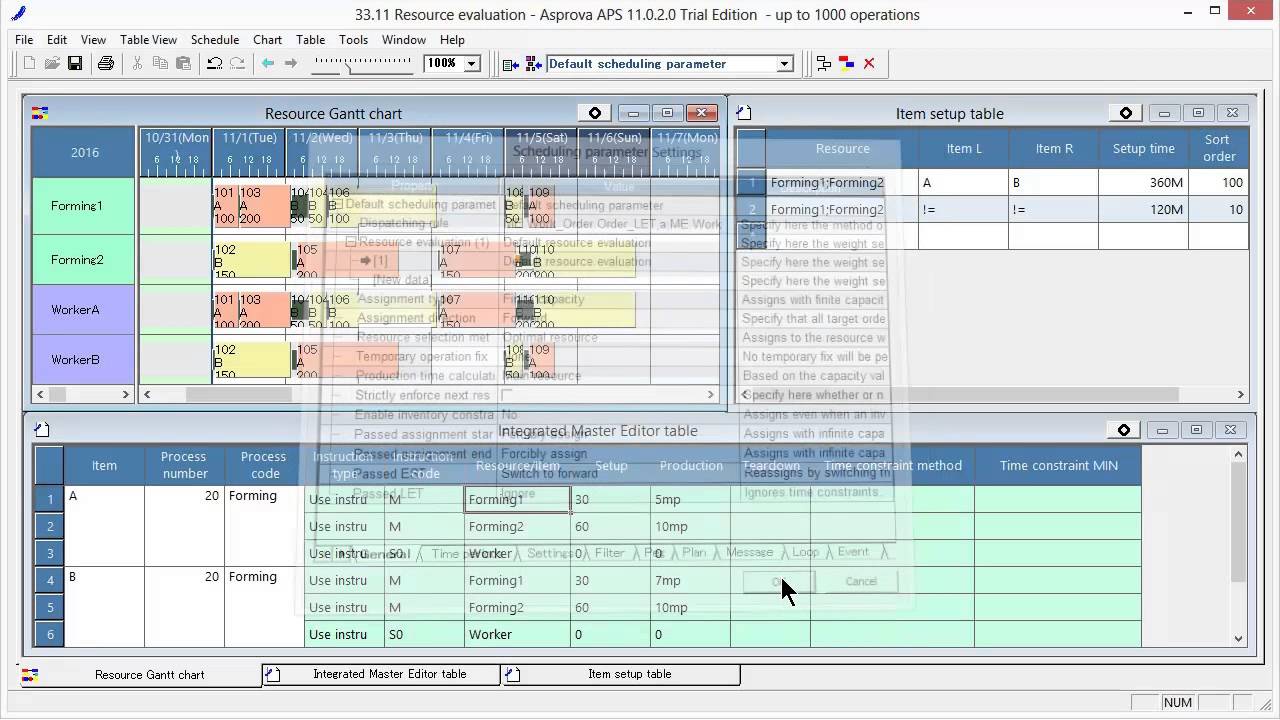
In this session, we will learn about the resource evaluation function by using the forming process of item A as an example.
The forming process has two main resources and one sub resource that are registered.
The sub resource "Worker" is a resource group and is assigned to group members "WorkerA" and "WorkerB".
Of the two main resources, "Forming1" has higher capacity.
Setup for changing items is also registered.
Let's assign the operations to the resource with the higher production capacity.
Click [Resource evaluation] in [Scheduling parameters].
There are 11 types of weights. Set [Weight - production time minimization] to "1".
Let's reschedule.
Operations are assigned to "Forming1", which has higher production capacity.
The reason why no operations are assigned to "Forming2" is because there are no weights assigned other than that for minimizing production time.
For "WorkerA" and "WorkerB", because their capacities are the same, operations are assigned to the resource that is evaluated first.
To avoid biased assignments, we level the load.
We set [Weight - load leveling] to "1".
When we reschedule, the load is roughly leveled.
Let's minimize the setup time.
Set [Weight - setup time minimization] also to "1".
When multiple weights are set, the evaluation values based on each weight are summed to determine the assignment destination.
Assign large values to weights that you want to prioritize and the smallest possible values to the other weights.
When we reschedule, the same items are assigned unevenly to reduce the number of setups.
There are idle times from November 3rd to the 4th.
This is because the resource evaluation weighting specified up to this point is applied to all resources.
Sub resources "WorkerA" and "WorkerB" have several holidays.
Because weights are set so that the load is leveled, load leveling is performed by taking holidays into account.
Therefore, it looks like it would be better to separate the resource evaluation weighting between the main resources and sub resources.
Let's add a new resource evaluation parameter "Worker".
Set [Target resource] to "Worker" to specify group members "WorkerA" and "WorkerB".
Because we would like to them work if there are any idle times, we specify [Weight - wait time minimization].
Let's reschedule.
Looking at the scheduling results, we see that idle times have been eliminated, and the load has been leveled while minimizing the production time and setups for the main resources.
We can view the resource evaluation results in the Message window and Message table.
Set the project's [Assignment message level] to "Detailed".
When we reschedule, we can view the evaluation values of the resources that were considered for each assigned operation.
Depending on the requirements, there may be cases in which we want to control the schedule using conditions that are not available in standard weighting.
Are the current specifications the same as those of the previous operation?
Are the numerical specifications within a given range?
I want to use the value of an added user property as a condition.
In these cases, we can set [Additional evaluation expression] to achieve weighting that is even more flexible.

For details on resource evaluation, see the online help.
http://lib.asprova.com/onlinehelp/en/...

Комментарии

Информация по комментариям в разработке

Похожие видео

  • О нас
  • Контакты
  • Отказ от ответственности - Disclaimer
  • Условия использования сайта - TOS
  • Политика конфиденциальности

video2dn Copyright © 2023 - 2025

Контакты для правообладателей [email protected]